How to Enter Notes After a Session
How to record and save your notes after each session with a client.
Written By Teodora
Last updated 4 days ago
1. Go to the "Clients" section
Find the client with whom you held the session.
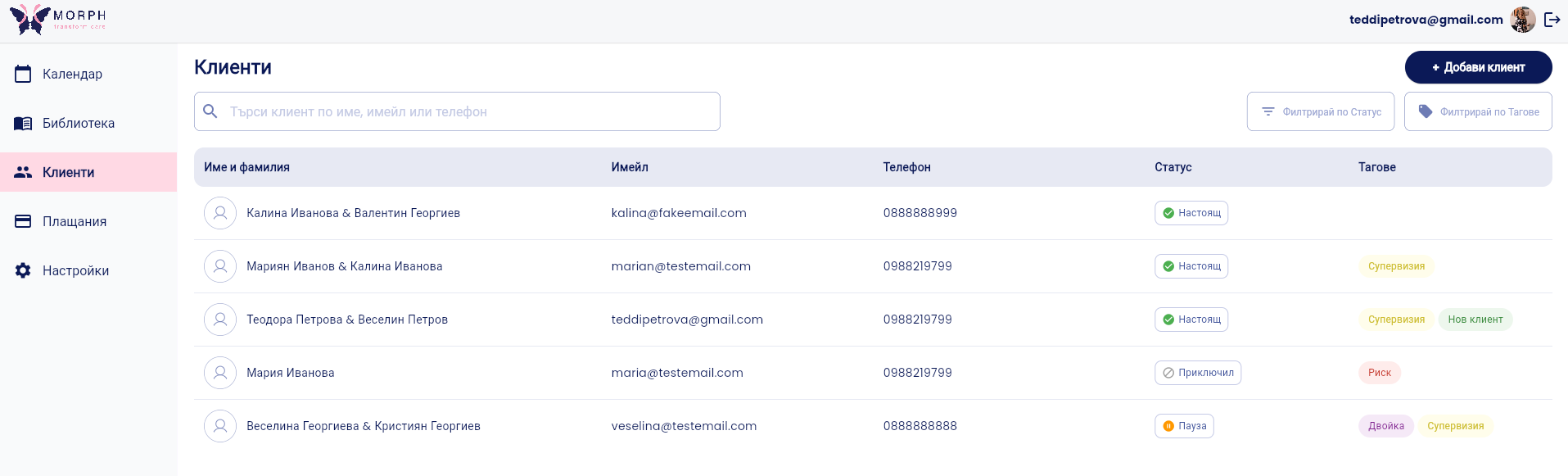
2. Open the client’s file
Click on the client’s name to open their profile.
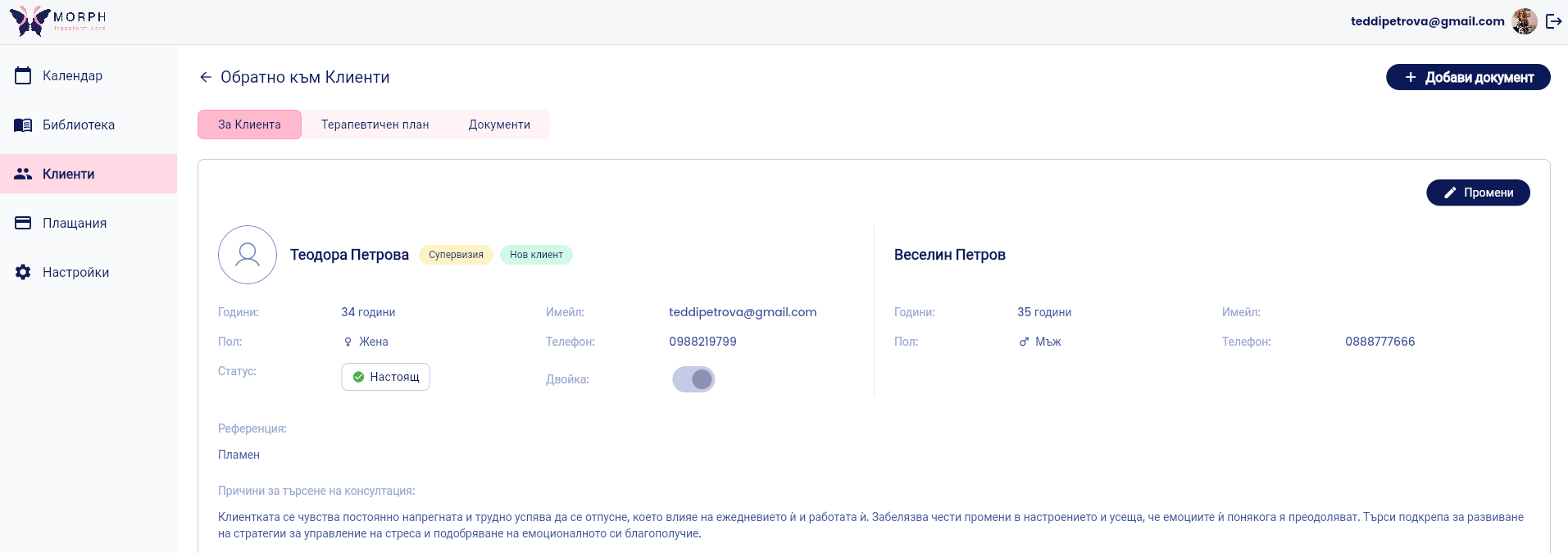
3. Click “Add Document”
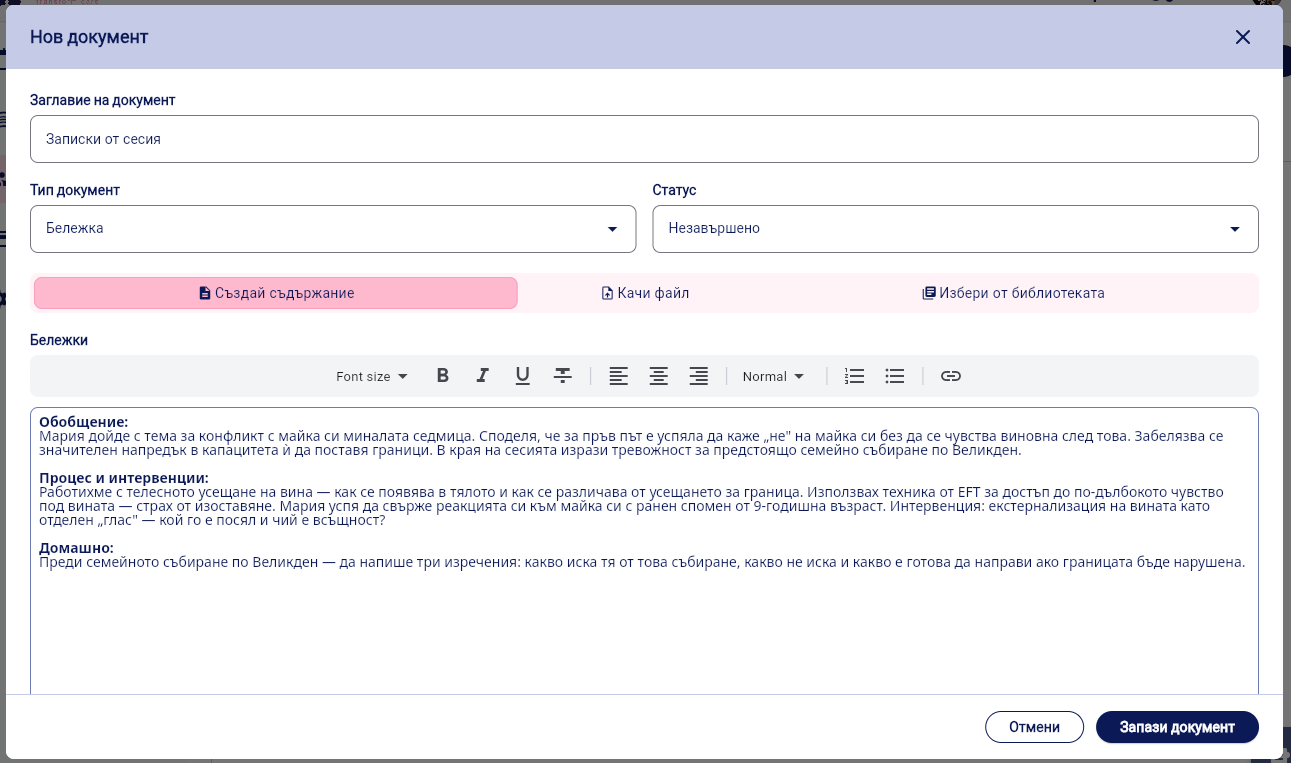
In the “Documents” section, select the “Add Document” button to create a new document. A window for creating a new document will open.
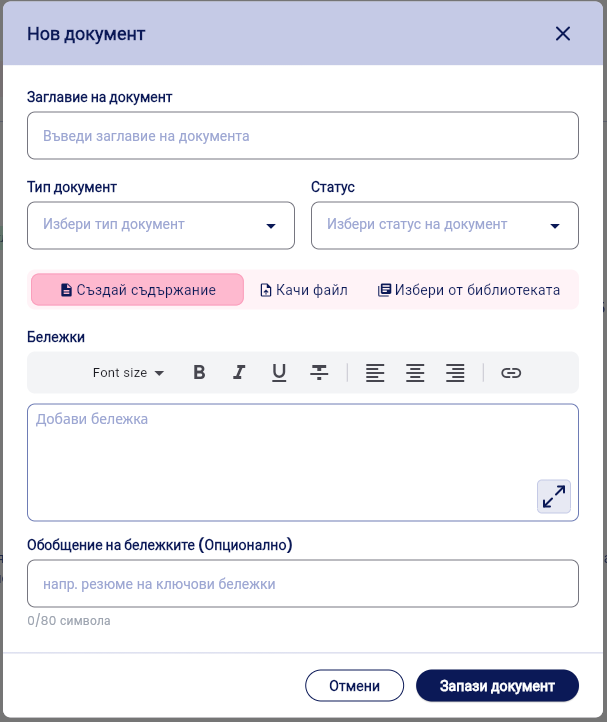
You have three options:
Create Content – to enter text directly. This will be covered in this article.
Upload a file – if you have a document ready.Read how to add it to the article here.
Select from the library – if you’re using a template from the library.Read how to add it to the article here.
4. Fill in the basic information
In the modal window, enter:
Document Title – e.g., “Session 12.03.2026”
Document type – select the appropriate type (e.g., Note)
Status – e.g., In Progress or Completed
5. Enter the content of the note
Select “Create Content” to enter the text directly into the “Notes” field.
You can:
format the text (bold, italics, lists, etc.)
add structured paragraphs
use a short summary in the “Note Summary” field
Expanding the text field
In the lower-right corner of the “Notes” field, you’ll see an expand icon. Tap it to enlarge the editor and work in full-screen mode.
This is especially useful for longer sessions or detailed clinical notes. When working in full-screen mode, you can focus entirely on the text without distractions.
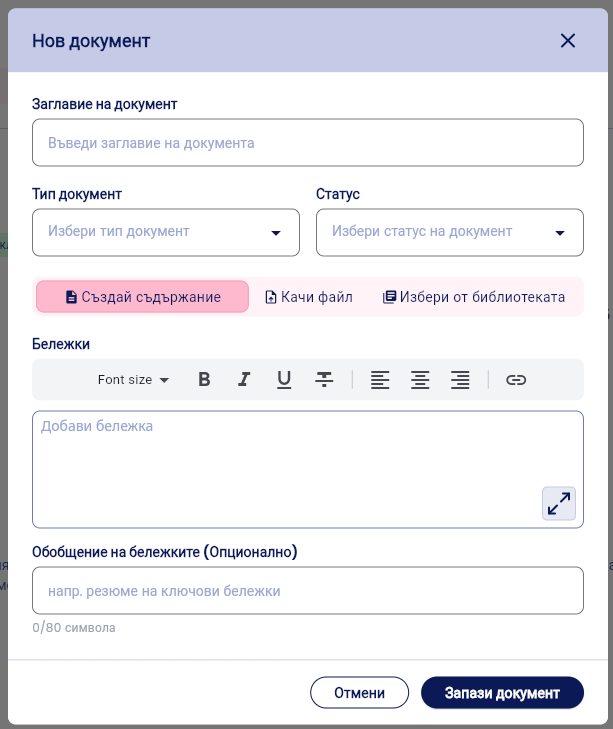
5. Enter a summary of the notes
In the notes summary, record the key topic of the session. The summary will appear in the document table—this way, you can quickly see the topic of the previous session.

6. Click “Save Document”
The note is saved in the client’s file with the date and time it was created.
You’ll see it in the “Documents” section in chronological order.
VIDEO
Was this helpful?
Still need help? Ask the team