How can you change your work schedule?
Your work schedule can be changed in two ways: for just one day or for the entire week (permanently).
Written By Teodora
Last updated 3 days ago
In just one day
Open the Calendar and select the day. [Check: Click on a day/time or the + Add Session button]
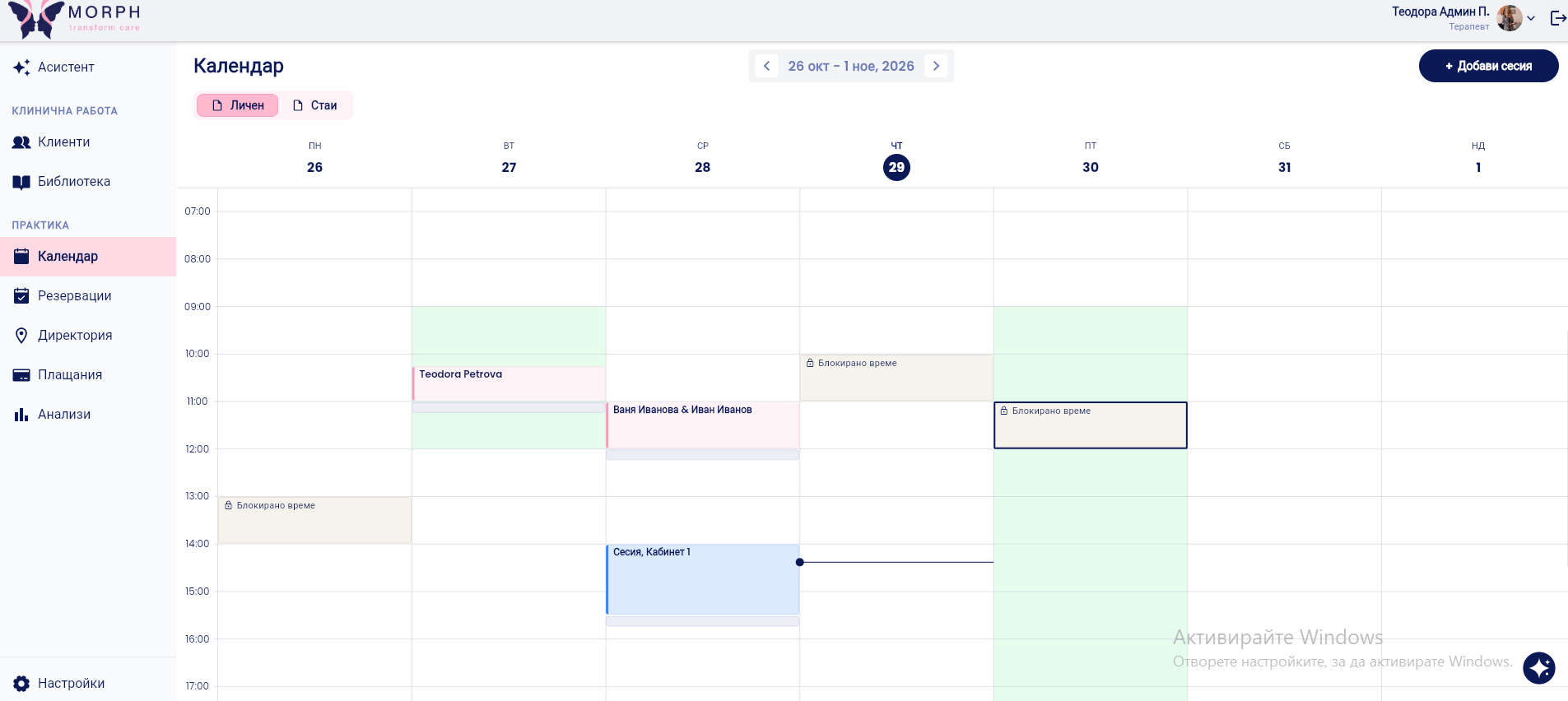
A window titled “What would you like to add?” will open. In the green “Availability for the Day” card, you’ll see rows for each format and location: Online, Practice Address, and any space where you work.
For a row that says “No Hours,” click + Add and set the hours.
For a row with hours already set, change the start and end times. Use + More Hours to add a second time slot, and use the trash can icon to remove it.

⚠️ Changes and deletions apply only to that day.
For the entire week (permanent)
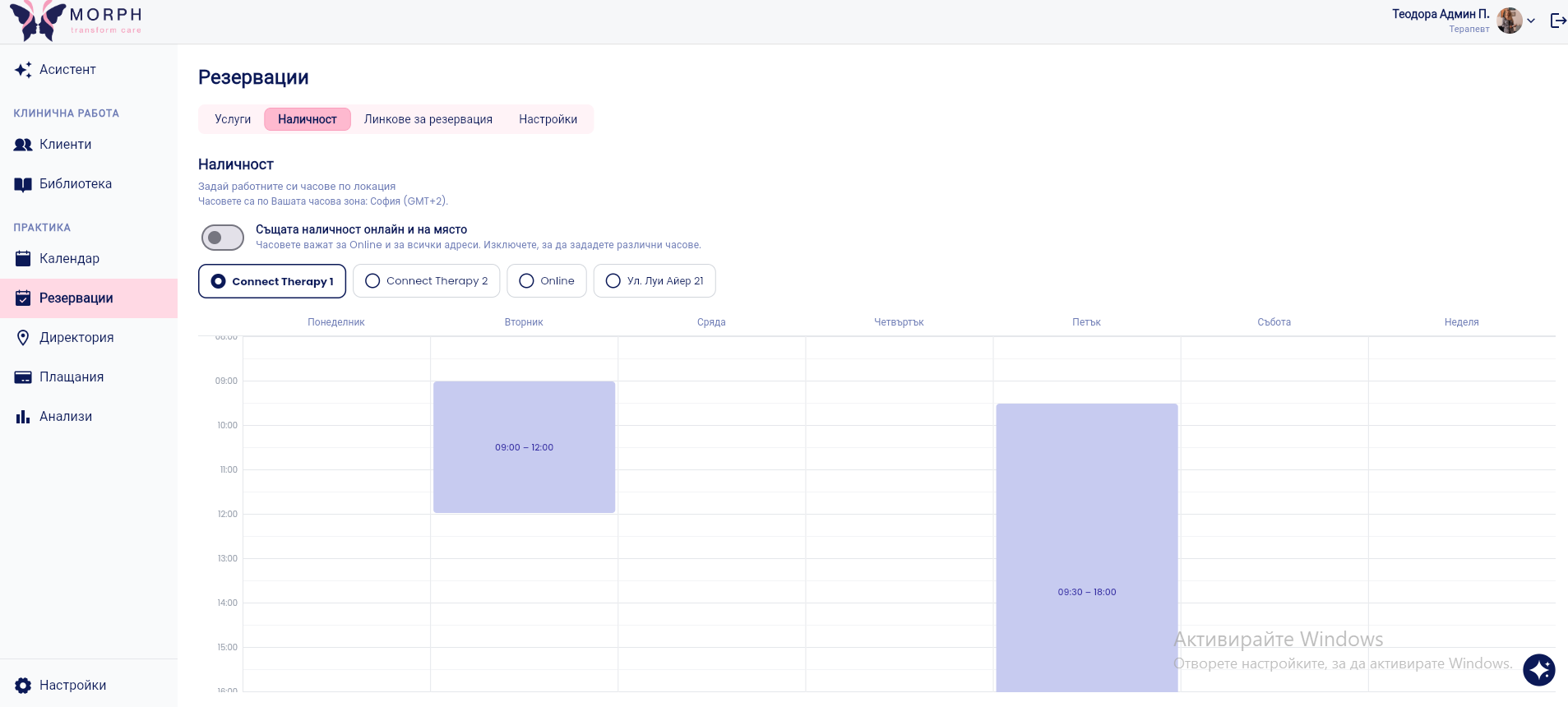
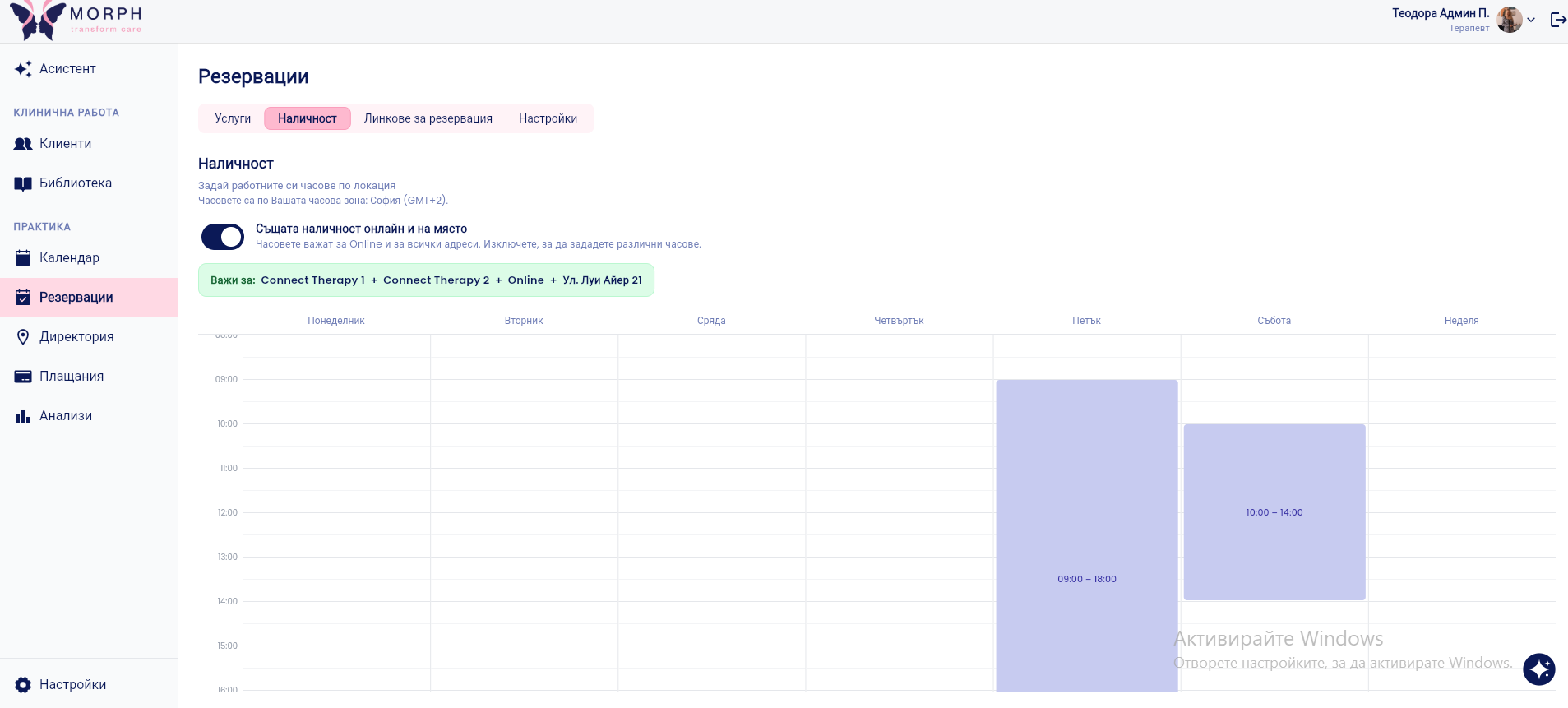
In the same window, tap “Edit Weekly Template.” You can also conveniently access this from “Reservations” → “Availability.”
Select a location: for example, Online or a studio address. You’ll see the business hours by day from Monday through Sunday.
If the hours are the same for online and in-person, enable “Same Availability Online and In-Person.” It is disabled by default so you can set different hours for each location.
Edit the blocks in the week. [Check: How to add, edit, and delete a block]
💡 The hours apply to your time zone (e.g., Sofia, GMT+2).
💡 For a one-time change (vacation, sick leave), use “Daily Availability,” and for a permanent change, use the weekly template.
📎 Related article: How to block off time on the calendar?
VIDEO
Was this helpful?
Still need help? Ask the team