How can you manage your payments?
Written By Teodora
Last updated 4 days ago
The "Payments" section gives you a complete overview of your practice's finances—revenue from sessions, other revenue, and expenses—all organized in one place.
At the top of the page, you’ll see a summary for the selected month: total paid, unpaid, and number of payments. You can navigate between months using the arrows at the top.
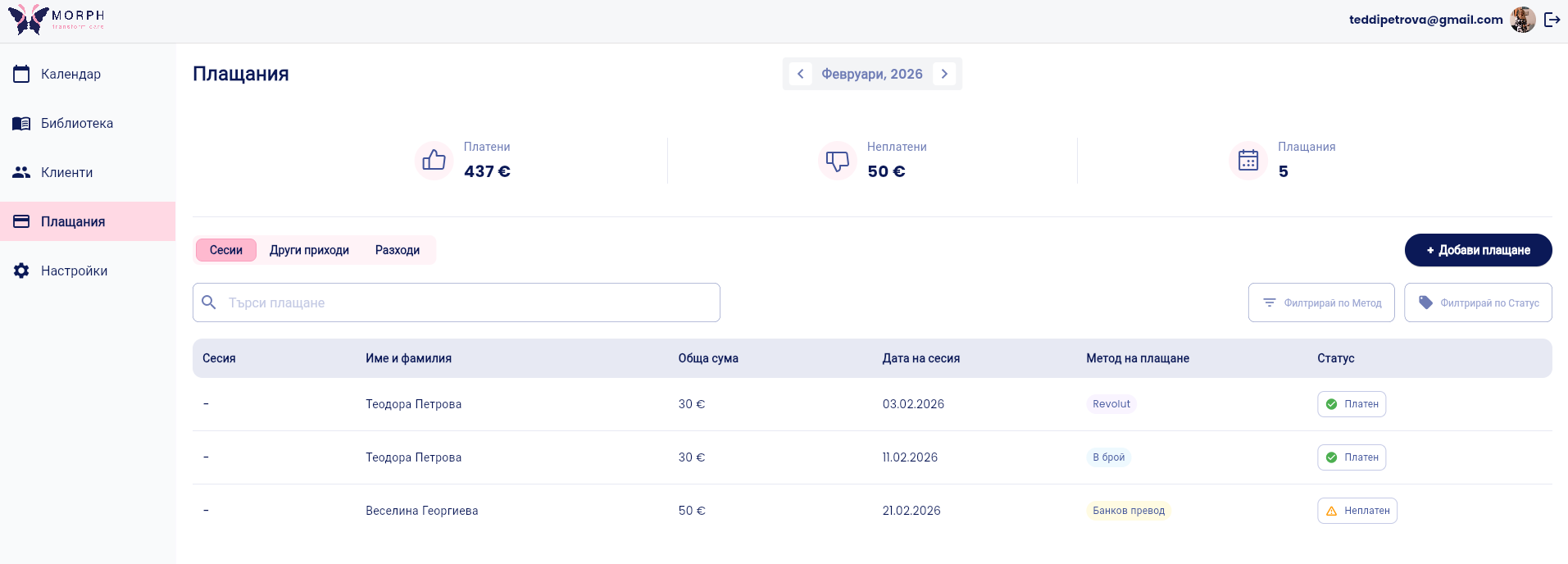
The financial data is divided into three sub-tabs:
Sessions—payments related to a specific client and session
Other Income—income outside of sessions, such as supervision, training, or consultations
Expenses—expenses related to your practice
Search and Filter
You can search for a specific payment by name using the search bar. For a more precise view, use the filters in the top right corner:
Filter by Method — Bank Transfer, Cash, Revolut
Filter by Status — Paid, Unpaid
💡 Use the arrows at the top to navigate between months and review your payment history.
How to add a payment from a session
1. Make sure you’re on the “Sessions” tab and click “+ Add Payment” in the top right corner.
💡 The payment is added to the tab that’s currently open—make sure you’re on the right tab before you begin.
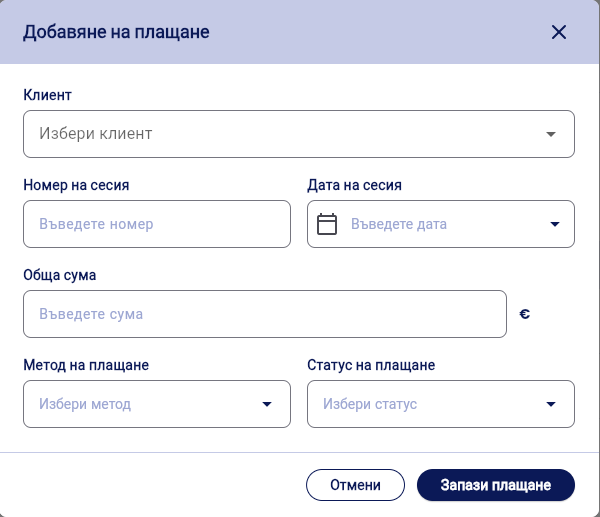
2. Fill in the fields:
Client—select from the list
Session Number—you can leave this blank
Session Date
Total Amount
Payment Method - Bank Transfer, Cash, or Revolut
Payment Status - Paid or Unpaid
3. Click “Save Payment.”
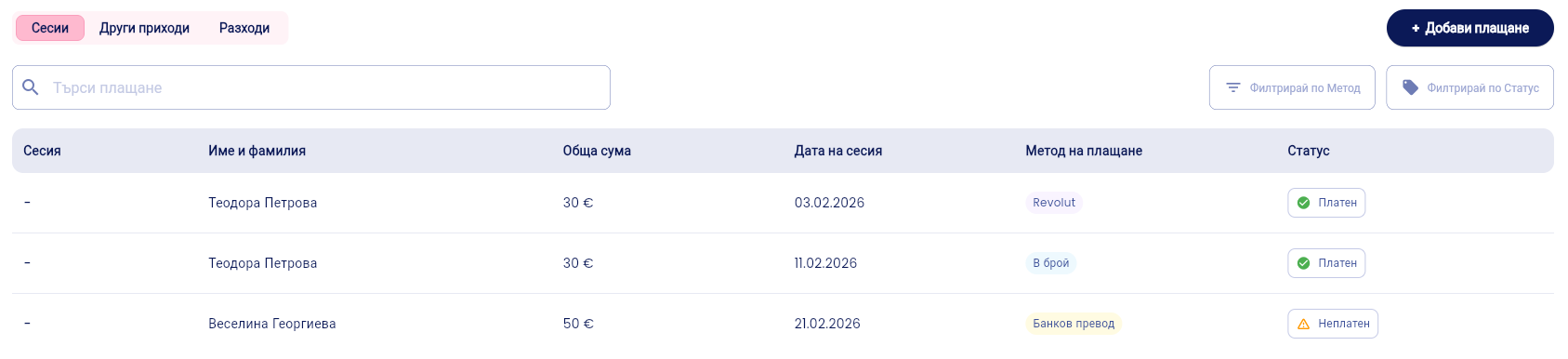
How to Add Another Income Entry
1. Go to the “Other Income” tab and click “+ Add Income.”
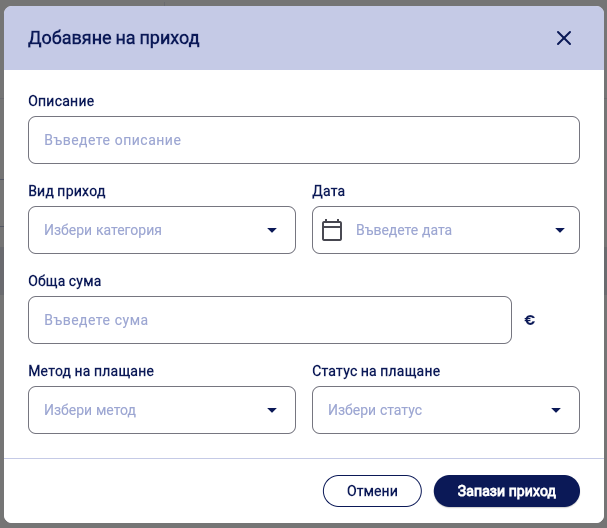
2. Fill in the fields: description, income type, date, total amount, payment method, and payment status.
3. Click “Save Income.”

How to add an expense
1. Go to the "Expenses" tab and click "+ Add Expense."
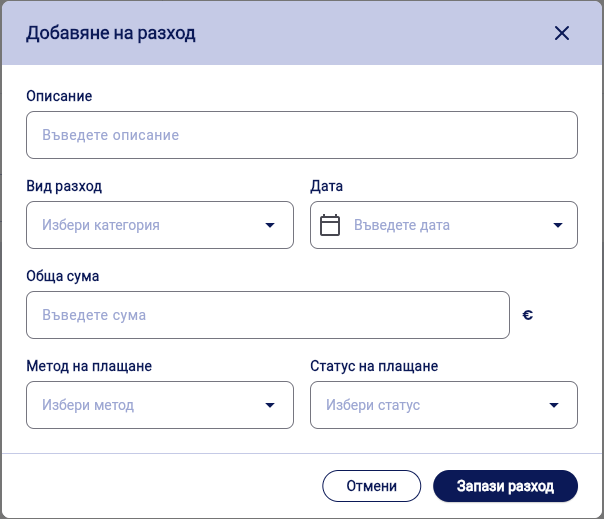
2. Fill in the fields: description, expense type, date, total amount, payment method, and payment status.
3. Click “Save Expense.”

Was this helpful?
Still need help? Ask the team