How to Dictate Notes from a Session Using an AI Assistant
The AI assistant in Morph helps you quickly and easily dictate your notes after a session. This can save you a significant amount of time after every client meeting.
Written By Teodora
Last updated 4 days ago
1. Open the AI assistant
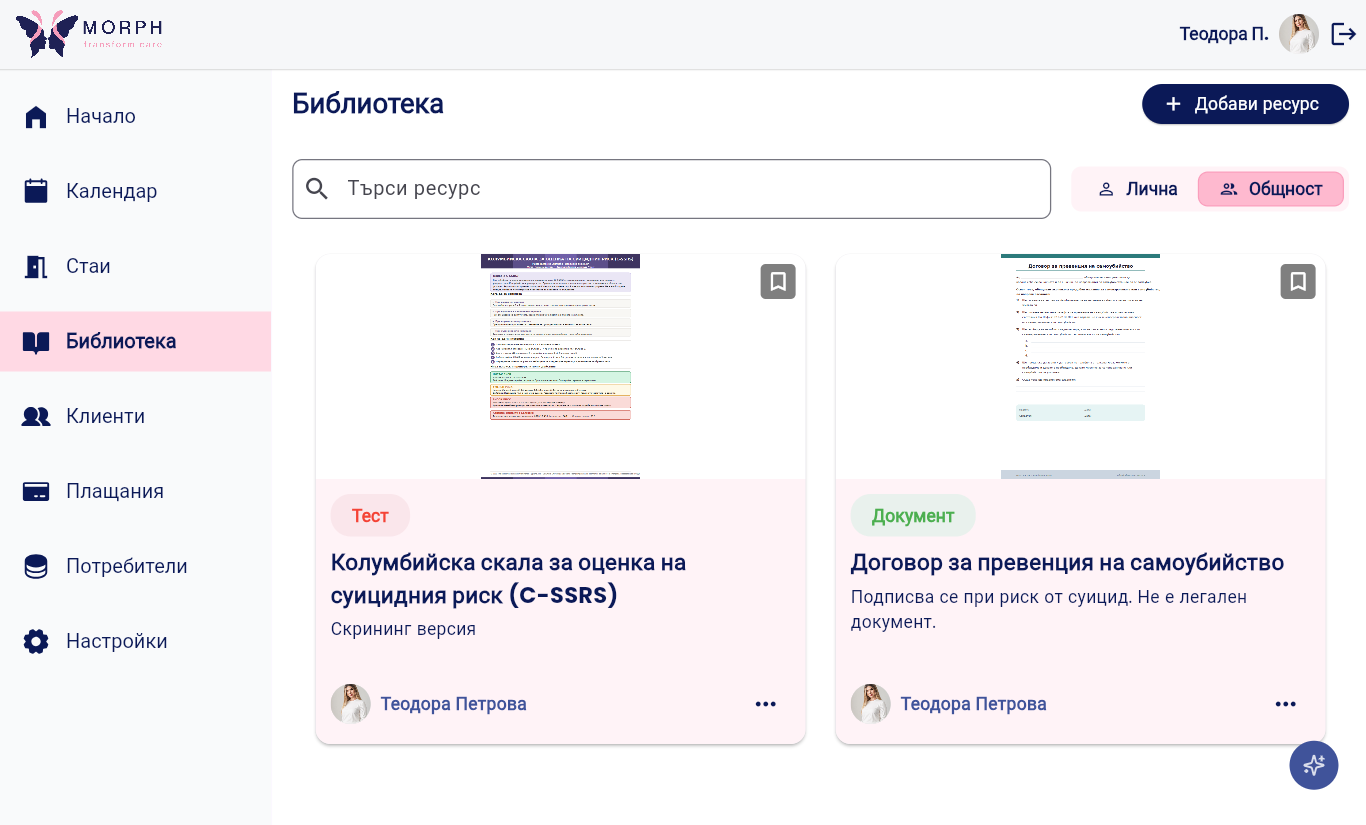
Tap the ✨ button in the lower-right corner of the screen.
2. Activate the assistant (on first use)
You’ll need to agree to the privacy policy.
The AI assistant was created in compliance with GDPR regulations.
3. Read the important message
The AI assistant processes voice data via an external server.
❗ Do not include the customer’s personal information, such as:
name
address
phone number
other identifying information
Use only clinical content.
💡 Morph is not liable for any violation of this rule.
4. Prepare for dictation
For best results:
Speak slowly and clearly
Dictate immediately after the session
You don’t need to follow a specific order
Speak freely—the assistant will organize the text
5. Start dictation
Tap “Start Dictation.”
The first time you use it, you’ll need to grant access to your device’s microphone.
6. Dictate your notes
You can speak freely for up to 10 minutes.
Recordings are typically between 2 and 6 minutes long.
7. Finish the recording
Tap “Done.”
The assistant will automatically process the dictation.
8. Review and use the note
You’ll receive a formatted note. You can copy it.
9. Add it to the client’s file and save it
Add the copied text as a document/note to the client’s file. You can make corrections if needed.
💡 Always review the content before saving it.
VIDEO
Was this helpful?
Still need help? Ask the team