How do you connect your Google Calendar or another external calendar?
Written By Teodora
Last updated 3 days ago
You have two options. Google Calendar syncs your sessions and displays your Google-booked time slots in Morph. A calendar subscription adds the Morph calendar to Apple Calendar, Outlook, or Google Calendar.
Google Calendar
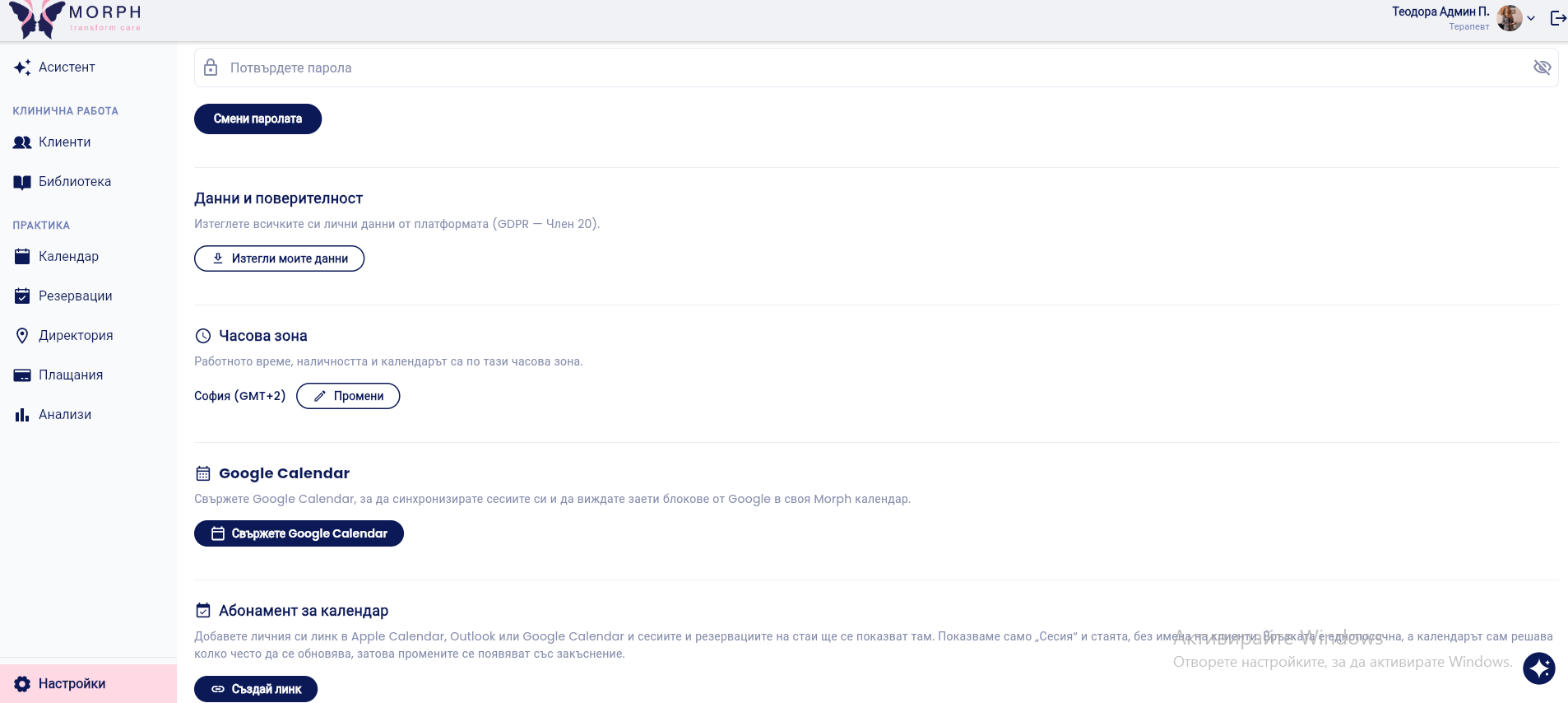
In the menu on the left, at the bottom, open Settings.
In the Google Calendar section, click Connect Google Calendar.
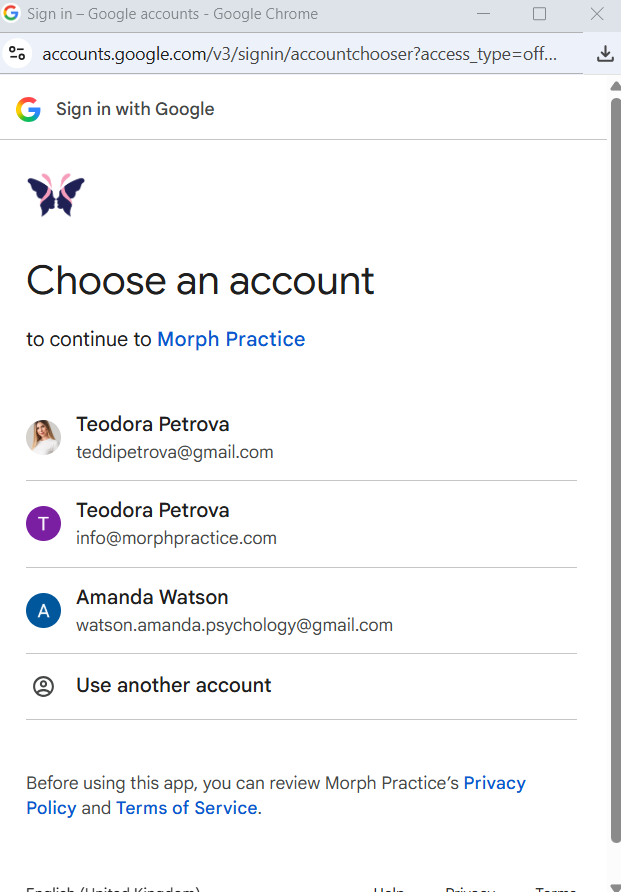
In the Google window, select the account you use for your calendar.
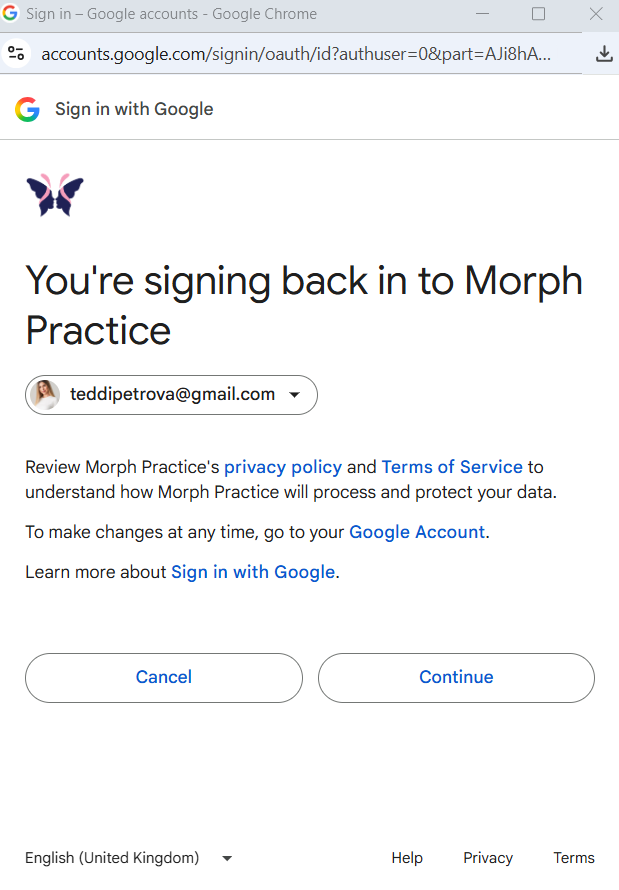
Review the requested permissions and click Continue.
You’ll be returned to Morph. You’ll see “Account linked” next to your email address.
Your sessions sync automatically with Google Calendar. Events from Google appear in Morph as “Busy” blocks.
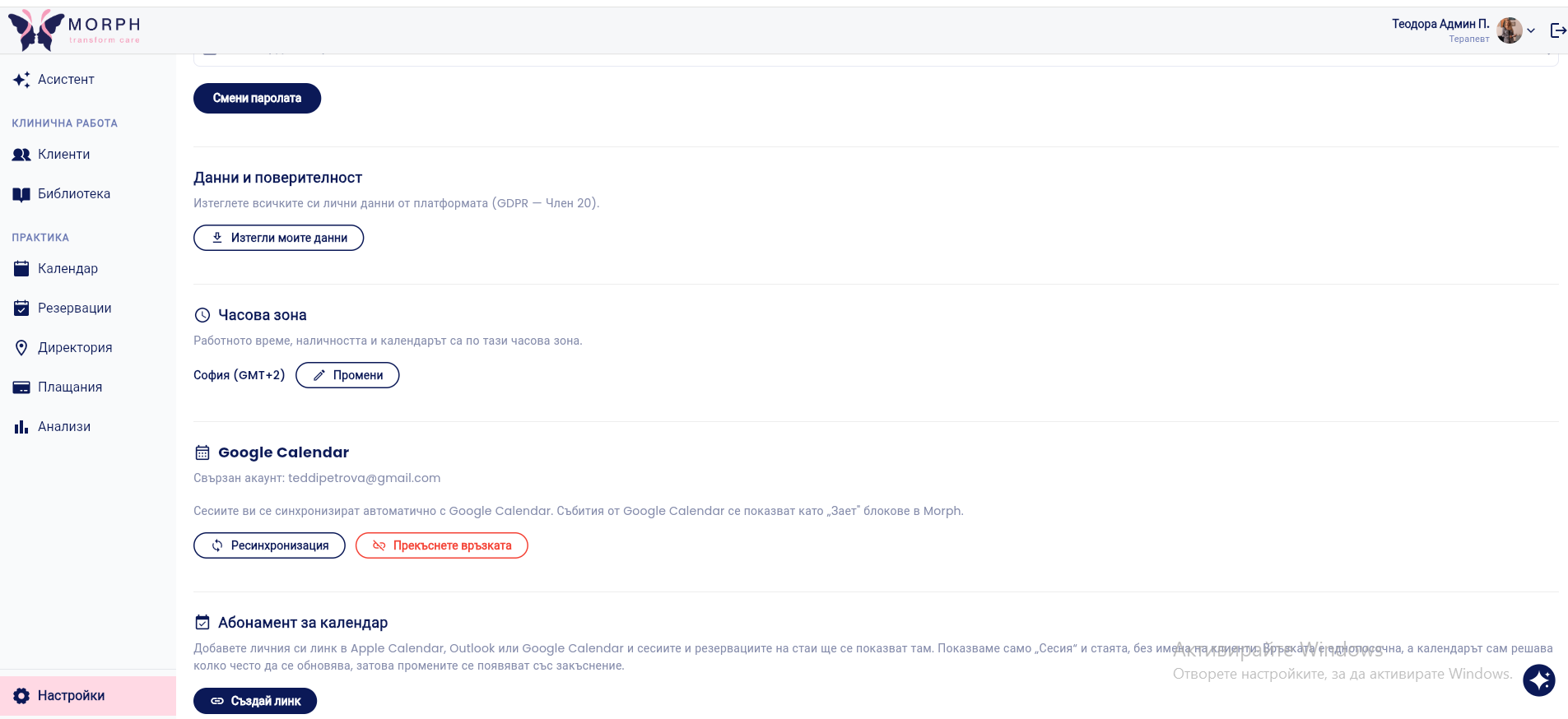
💡 If something isn’t showing up, tap Resync. To stop syncing, tap Disconnect.
Calendar Subscription (Apple, Outlook, Google)
In the Calendar Subscription section, tap Create Link.
Copy the link and add it as a subscription in Apple Calendar, Outlook, or Google Calendar.
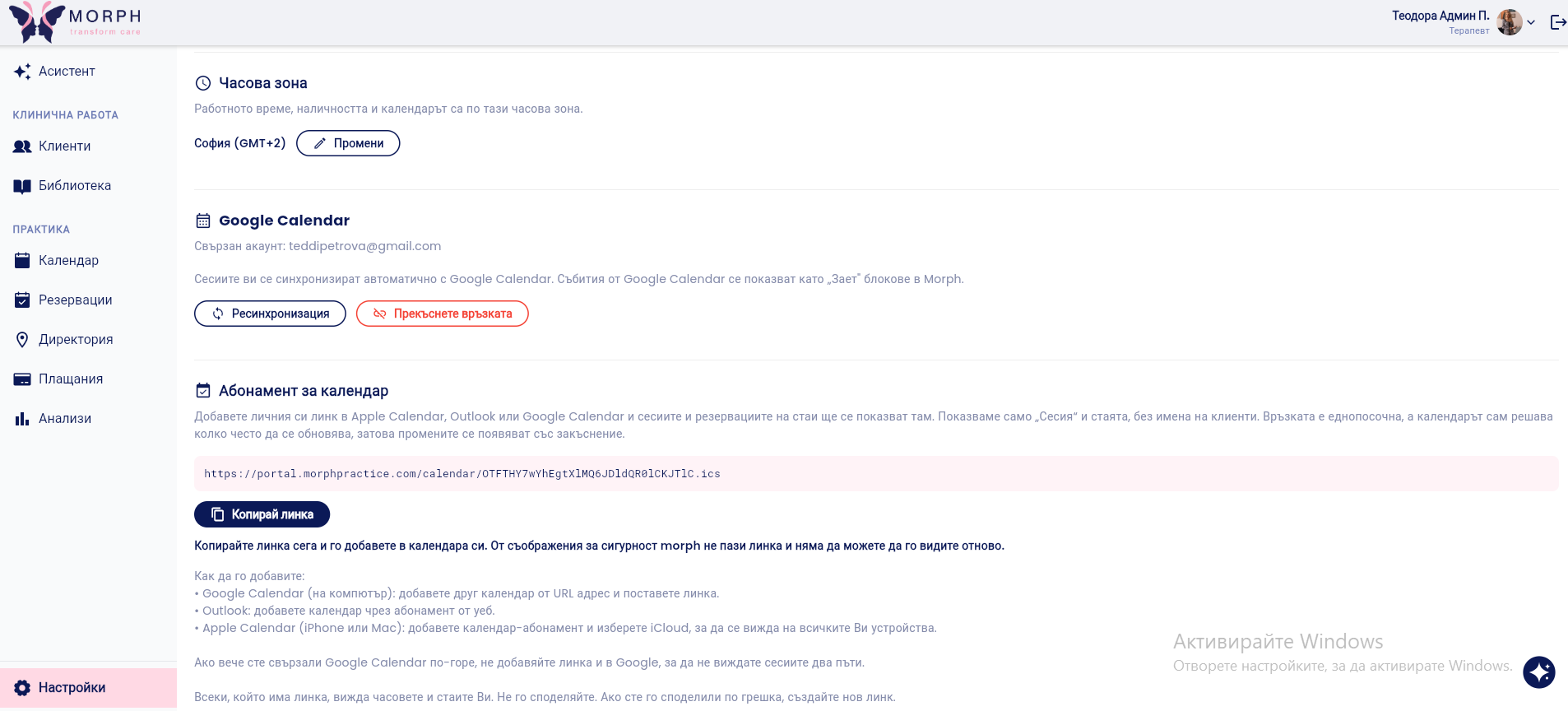
⚠️ The subscription only shows the “Session” and the room, without the clients’ names. The connection is one-way (from Morph to the external calendar), and the calendar itself determines how often it updates, so changes may appear with a delay.
💡 The difference: with Google Calendar, you can see your availability in Morph, and sessions are synced. With the subscription, you can view Morph in your external calendar.
VIDEO
Was this helpful?
Still need help? Ask the team