How to Send a Document to a Client via Email
There are two ways to send a document: directly from the client's file or from your personal library.
Written By Teodora
Last updated 4 days ago
💡 Make sure the customer's email address is up to date before sending. You can check and edit it in the "About the Customer" tab in their profile.
⚠️ If the client does not have an email address entered in their profile, sending the email will not be possible. Add the email address first in the “About the Client” tab.
Option 1: From the client’s profile
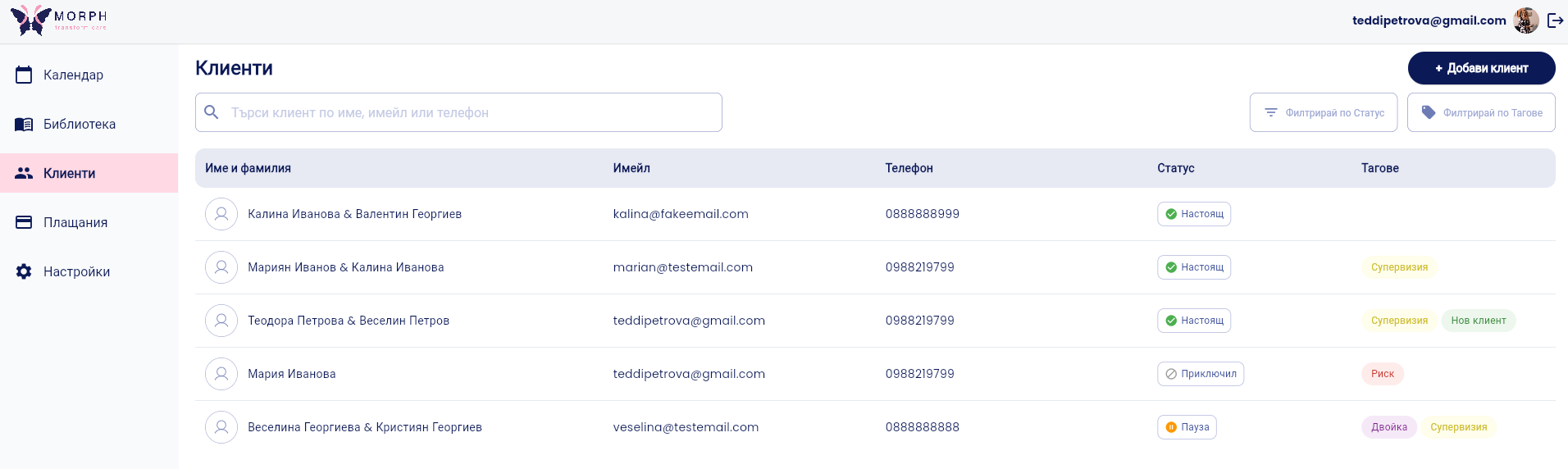
1. Go to the client’s profile
Find the client in the “Clients” section and click on their name.
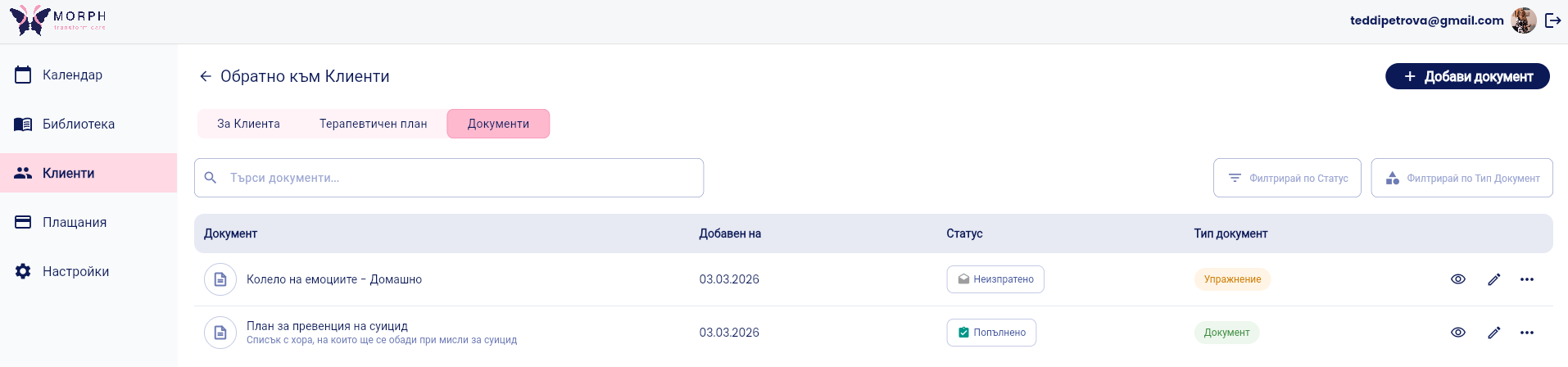
2. Go to the “Documents” tab
Find the document you want to send.
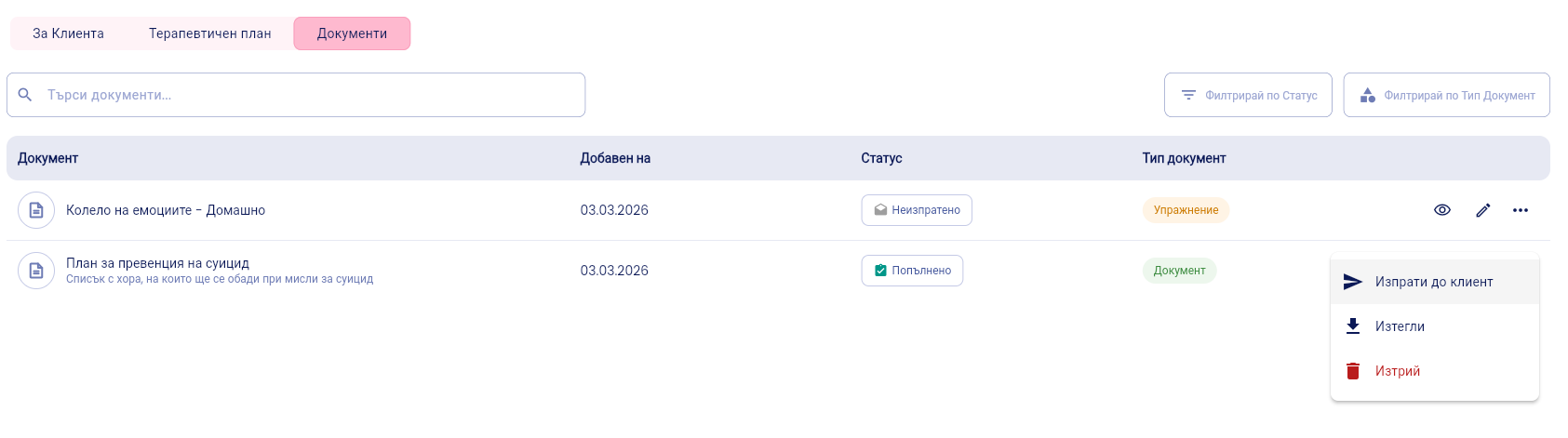
3. Click ... and select the “Send by Email” option
To the right of the document, you’ll see three dots (...), and when you click them, the “Send to Client” option will appear.
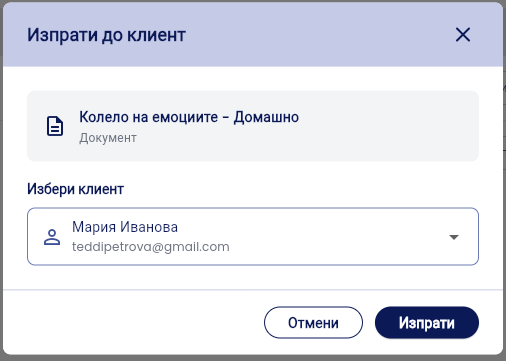
5. Select a client from the list
Make sure you’ve selected the correct client and that the email address is valid.
5. Done
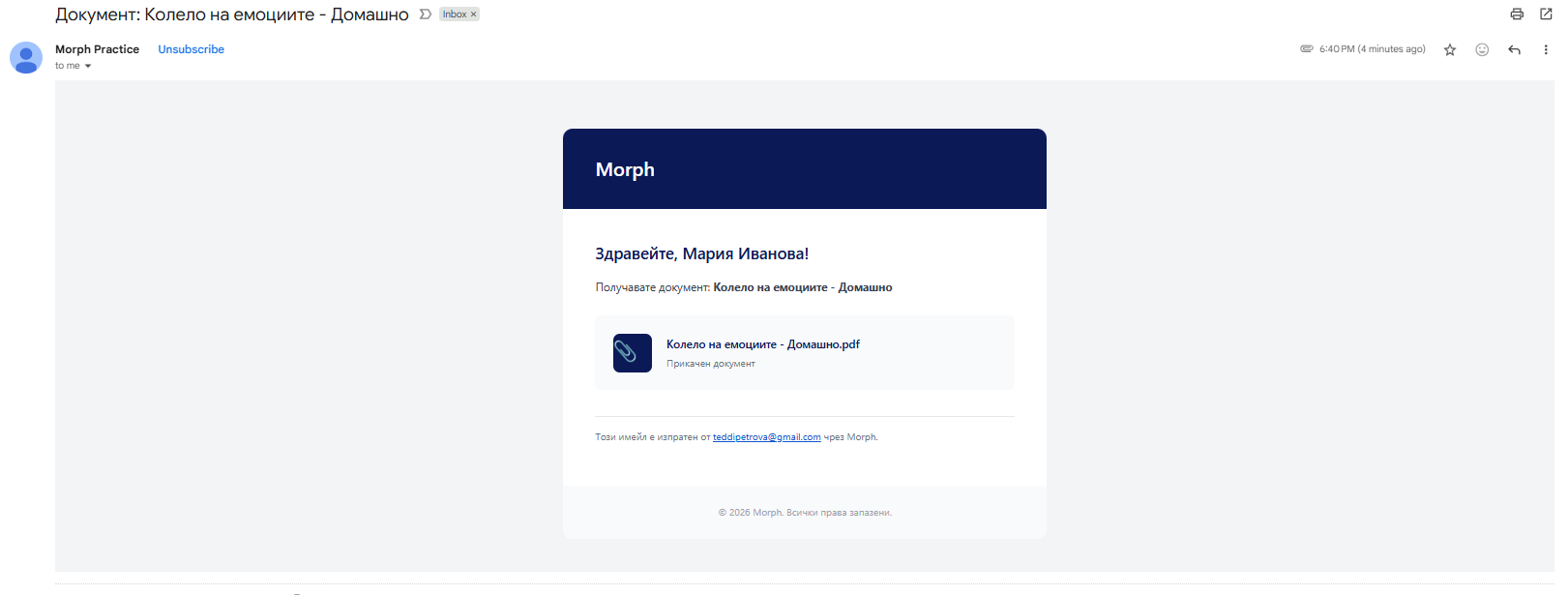
The client will receive an email with the document as an attachment.
Option 2: From your personal library
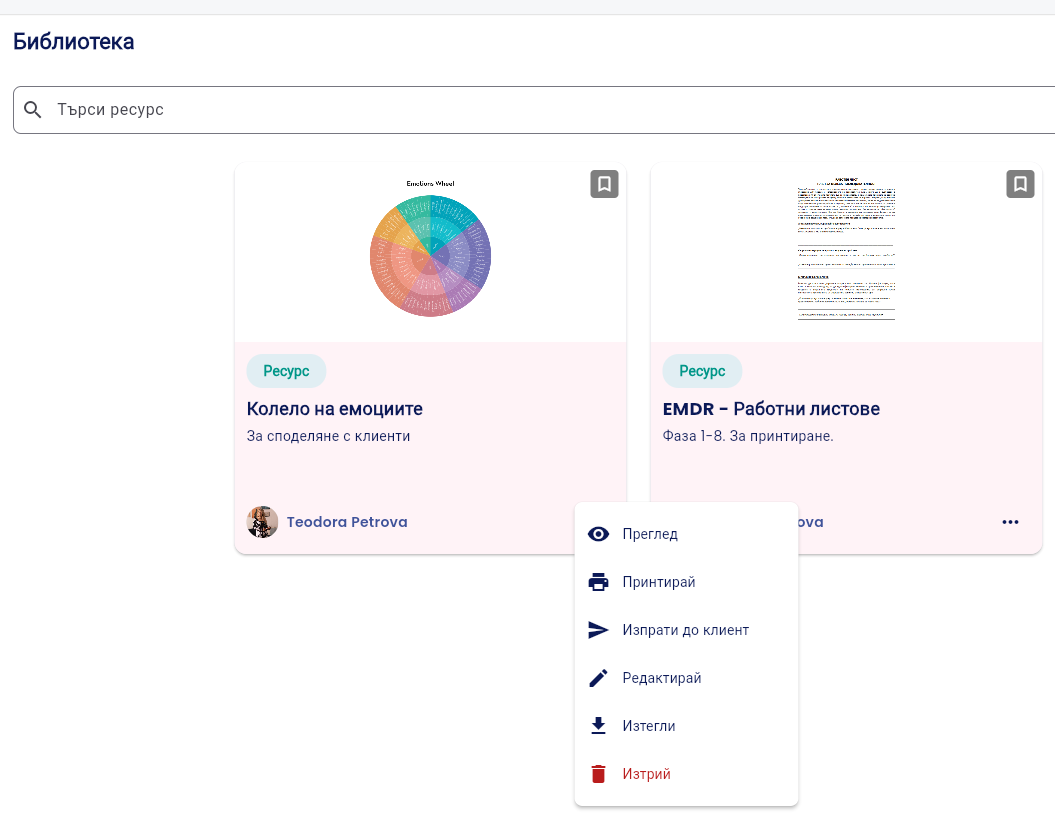
1. Go to the “Library” section
Find the resource you want to send.
2. Click the three dots (...) next to the resource
Select the “Send to Client” option.
3. Select a client
Select the client from the list to whom you want to send the resource.
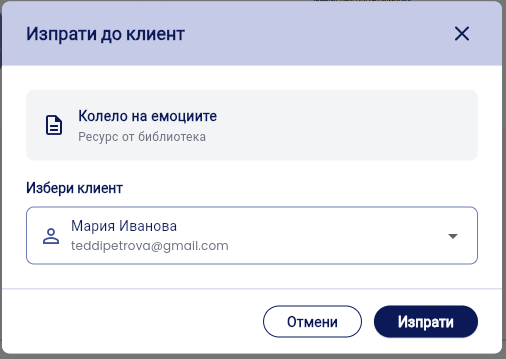
4. Confirm and tap “Send”
The client will receive an email with the document as an attachment.
VIDEO
Was this helpful?
Still need help? Ask the team