How do you create your own profile in the FindTherapy.bg directory?
Written By Teodora
Last updated 3 days ago
Introduction
Your profile on FindTherapy.bg is your business card in the directory: clients find you, view your profile, and book an appointment directly with you. You can complete your profile in 6 steps, pausing and resuming later as needed. When you’re ready, submit it for review, and once approved, it will be published.
💡 Until you submit it for review, the profile is a Draft and is visible only to you.
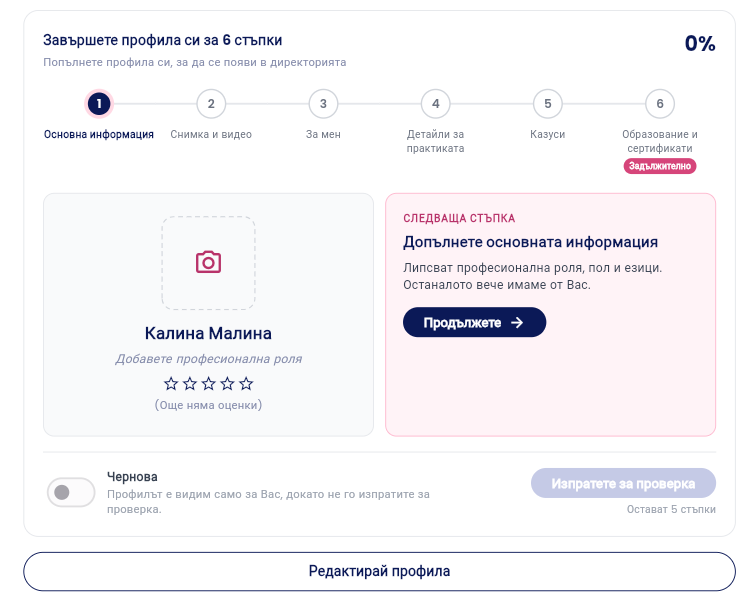
At the top, you can see how many steps are left and what portion of the profile has been completed. The “Continue” button takes you to the next step. With “Edit Profile,” you can return to any section.
Step 1: Basic Information
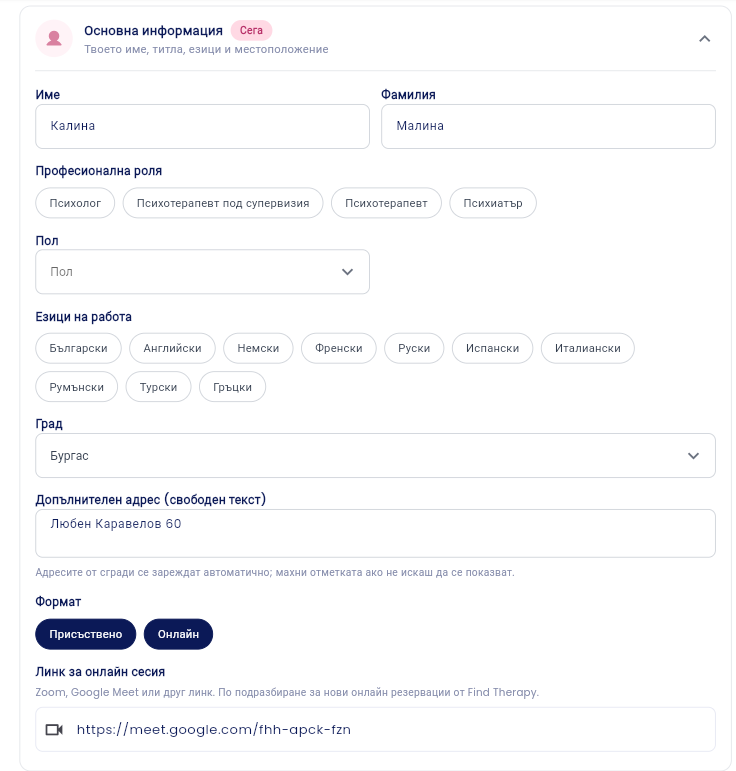
Check your first and last name.
Select your professional role: psychologist, psychotherapist under supervision, psychotherapist, or psychiatrist.
Select your gender.
Select your working languages. You can select more than one.
Select a city and, if you wish, add an additional address (free text).
Select a format: in-person, online, or both.
If you work online, add a link for online sessions (Zoom, Google Meet, or other). By default, this is used for new online bookings through Find Therapy.
💡 Building addresses are loaded automatically. Uncheck the box if you don’t want them to appear.
Step 2: Photo and Video
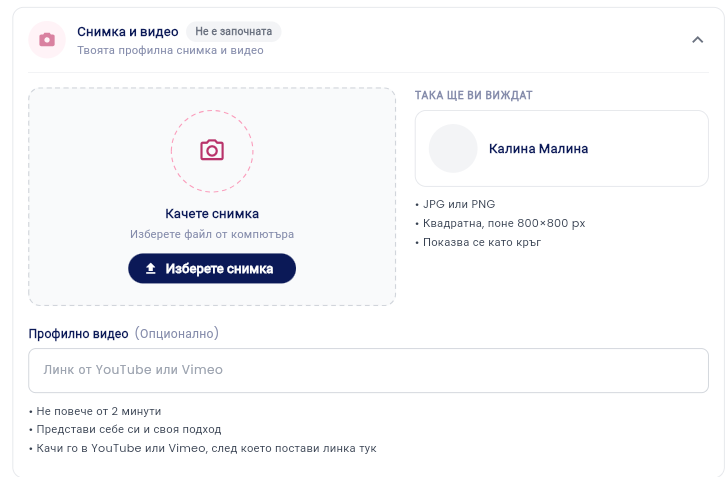
Click “Select Photo” and upload a file from your computer.
On the right, under “This is how you’ll appear,” you can preview how your profile looks.
Optionally, add a profile video: paste a link from YouTube or Vimeo.
⚠️ The photo must be a JPG or PNG, square, and at least 800×800 px. It will be displayed as a circle.
💡 The video is optional. It should be up to 2 minutes long, in which you introduce yourself and your approach. Upload it to YouTube or Vimeo first, then paste the link here.
Step 3: About Me

Step 4: Practice Details
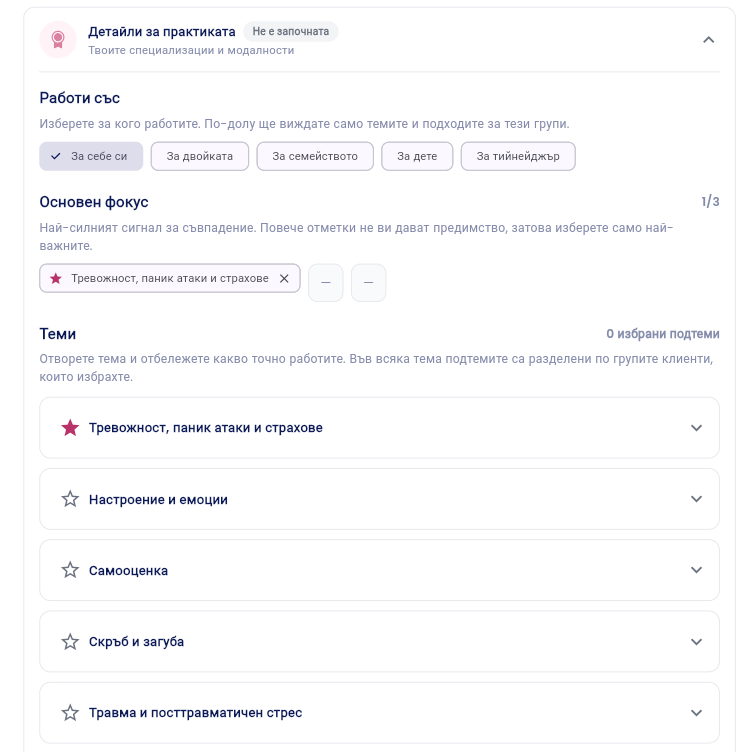
Works with: Select who you work with: yourself, couples, families, children, or teenagers. Below, you’ll see only the topics and approaches for these groups.
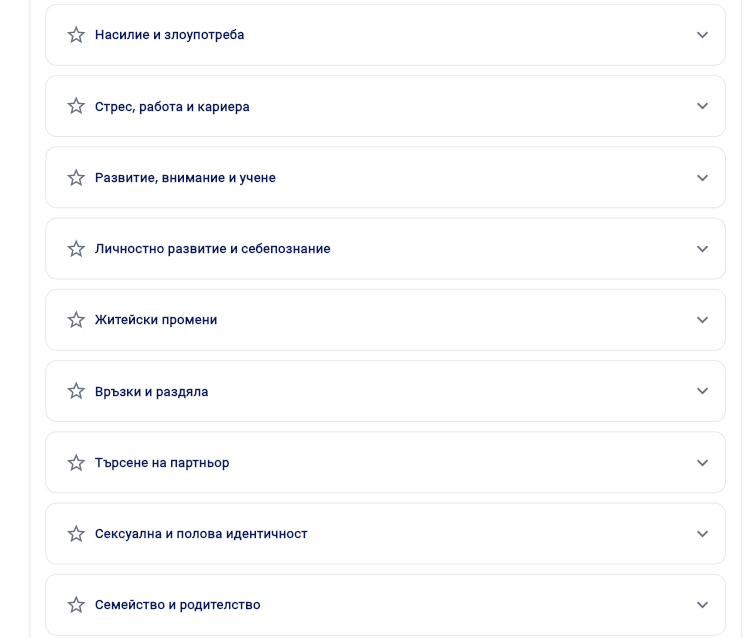
Main Focus: Select up to 3 topics that are most important to you. Mark them with a star ⭐ next to the topic.
Topics: Open a topic (for example, “Anxiety, Panic Attacks, and Fears”) and specify exactly what you work on. Subtopics are organized by the client groups you’ve selected.
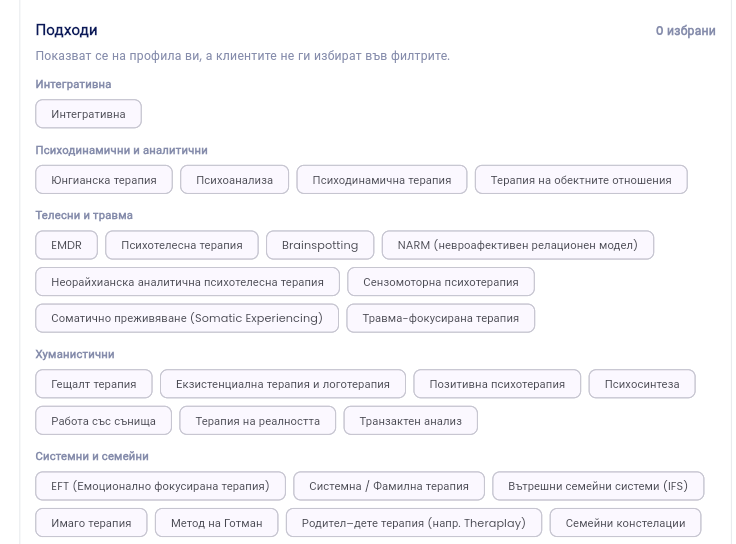
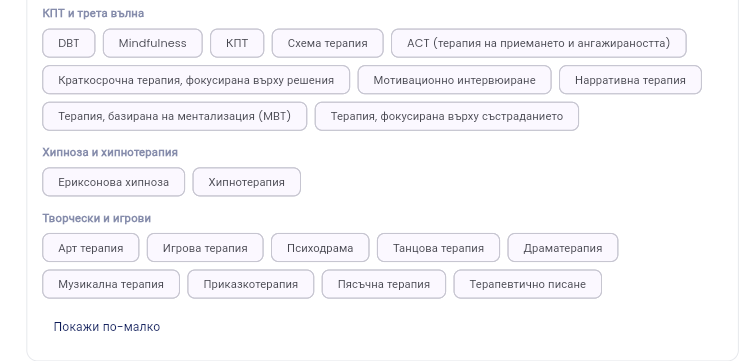
Approaches: Select the methods you use (integrative, CBT, EMDR, systemic therapy, etc.).
⚠️ Your primary focus sends the strongest signal of a good match with clients. Selecting more options doesn’t give you an advantage, so choose only the most important ones.
💡 Your approaches are displayed on your profile, but clients do not select them in the filters.

Step 5: Types of Cases You Work With
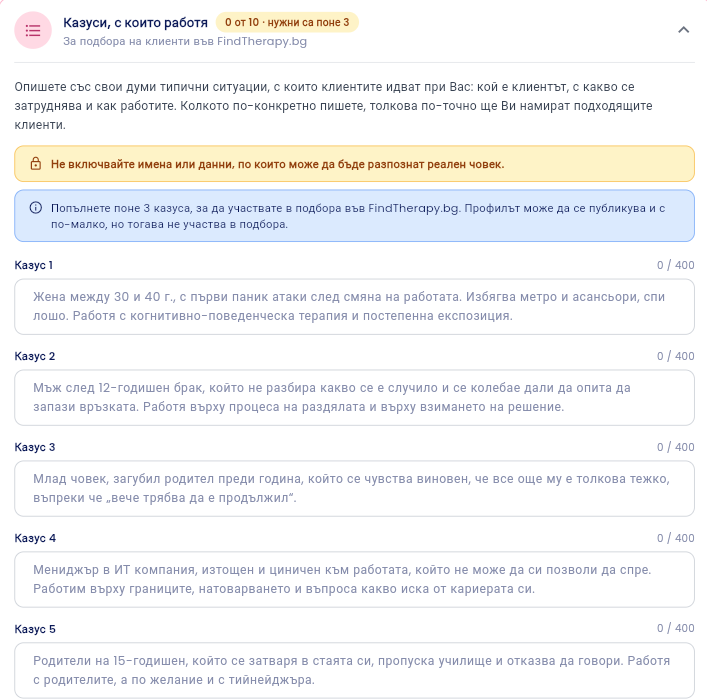
Describe in your own words typical situations clients come to you with: who the client is, what they’re struggling with, and how you work with them. Up to 400 characters per case.
Fill in at least 3 cases out of the 10 available.
⚠️ Do not include names or details that could identify a real person.
💡 The more specific you are, the more accurately suitable clients will find you. These case studies are used in the matching process on FindTherapy.bg. Your profile can be published with fewer than 3 case studies, but it will not be included in the matching process.
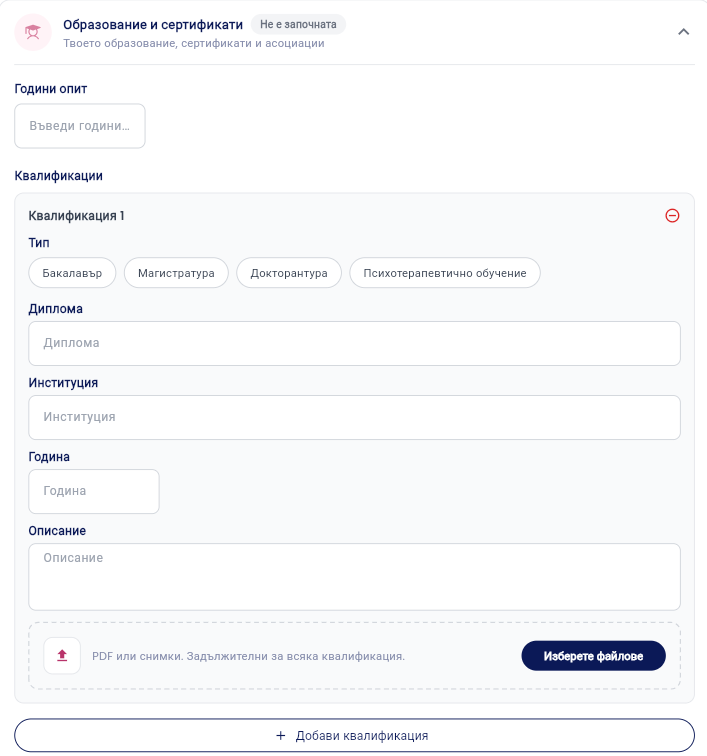
Step 6: Education and Certifications
This step is required.
Enter your years of experience.
Under “Qualifications,” select a type (bachelor’s, master’s, doctoral, psychotherapy training) and fill in the degree, institution, year, and, if desired, a description.
Upload a file using “Select Files” (PDF or photos). This is required for each qualification.
Add more qualifications by clicking “+ Add Qualification.”
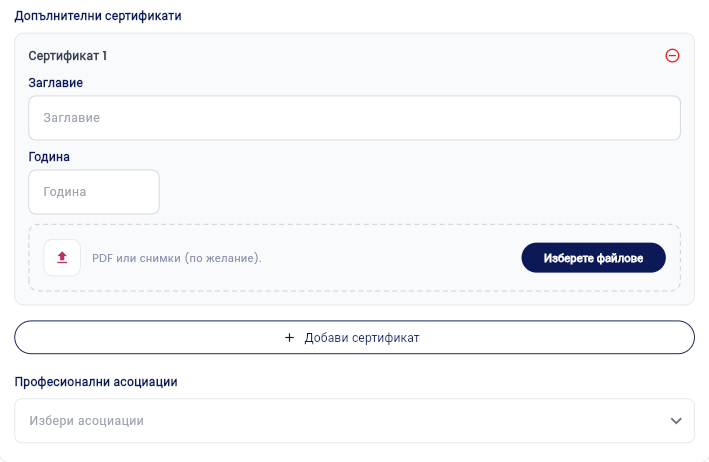
Optionally, add additional certificates: title, year, and file.
Under “Professional Associations,” select the associations of which you are a member.
Business Hours and Prices
This section is for viewing only. The data comes from your online booking settings. To make changes, click “Edit” under “Bookings.”
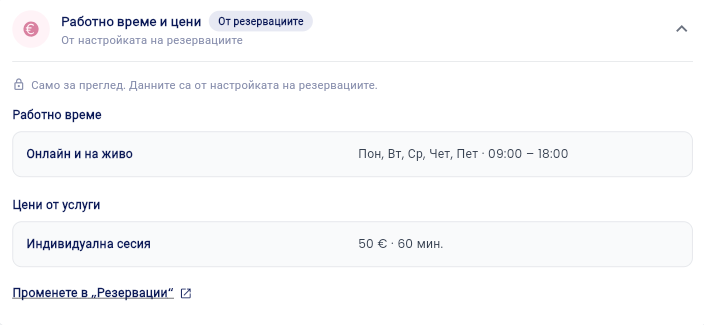
Image 11
Submit for Review
Click "Save Changes" at the bottom of the form.
Once all steps are completed, click “Submit for Review.”
⚠️ The button is disabled until all steps are completed. The number of remaining steps is displayed below it.
📎 Related article: How to set up online reservations?
VIDEO
Was this helpful?
Still need help? Ask the team