How do you set up online reservations?
Written By Teodora
Last updated About 7 hours ago
The first time you log in to Morph Practice, we’ll walk you through a quick 5-step setup. At the end, you’ll receive a personalized link that your clients can use to book an appointment. It takes about 3 minutes, and you can change anything later.
💡 Don’t feel like doing it right now? Click “Finish Later” at any step and come back when it’s convenient for you from the AI Assistant screen.
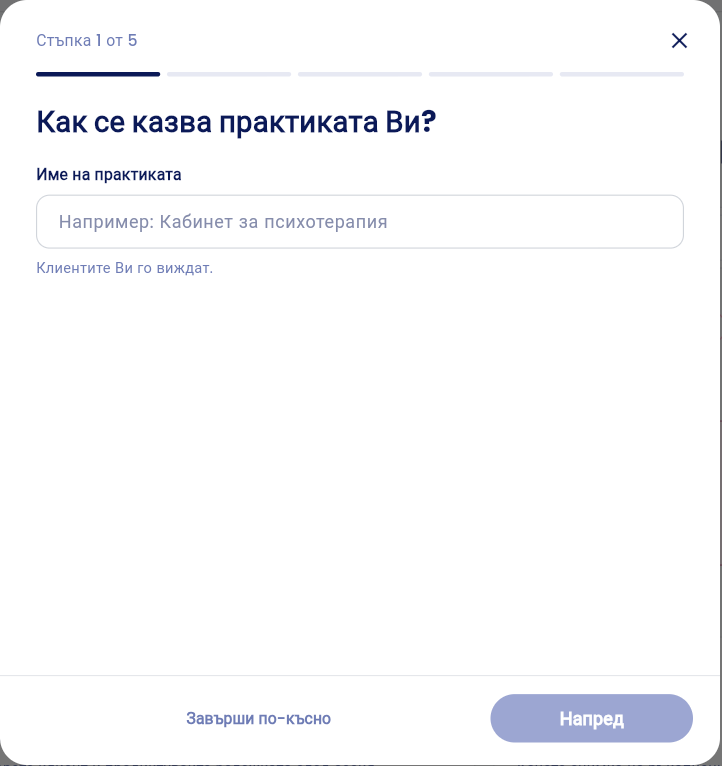
Step 1: Practice Name
Enter the practice name, for example, “Psychotherapy Office.”
Click Next.
💡 Your clients will see this name.
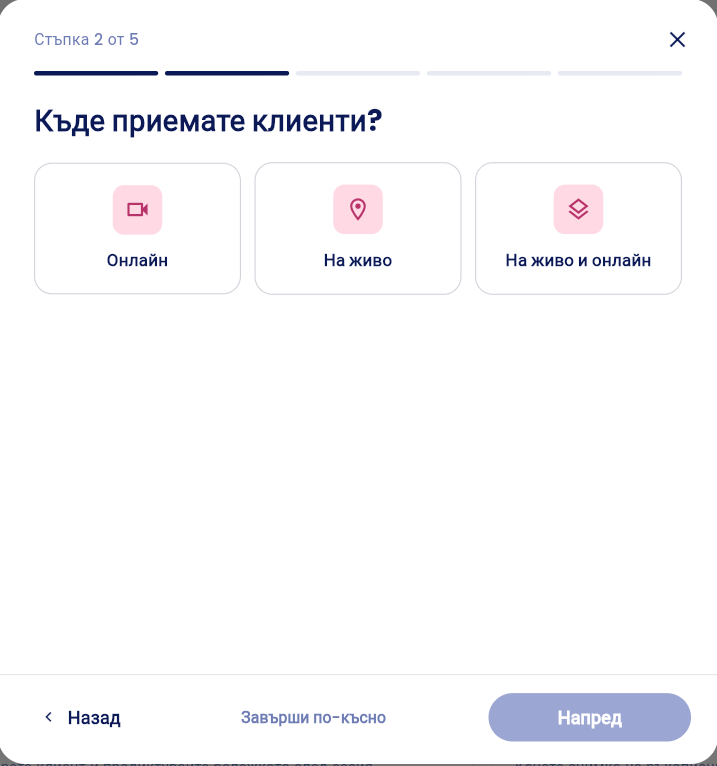
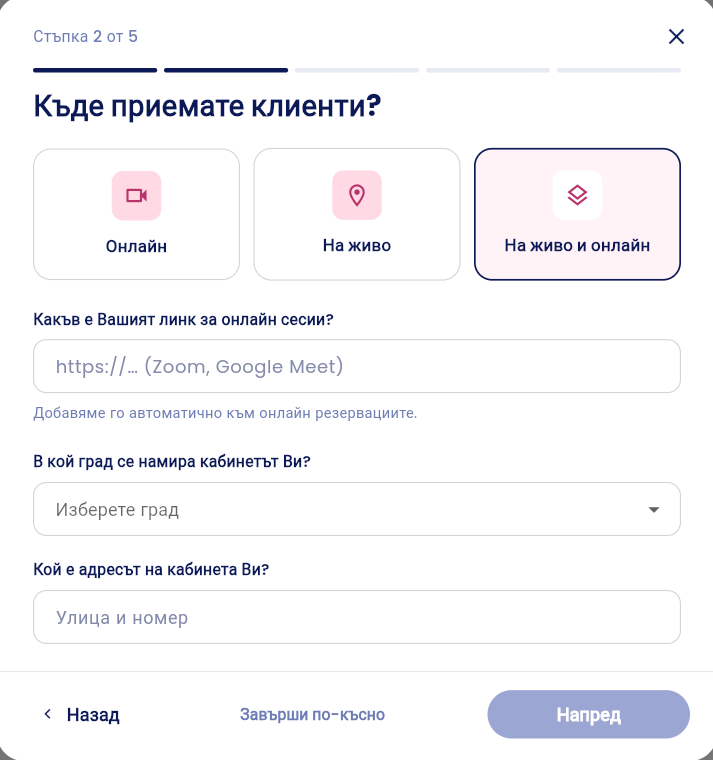
Step 2: Where Do You See Clients?
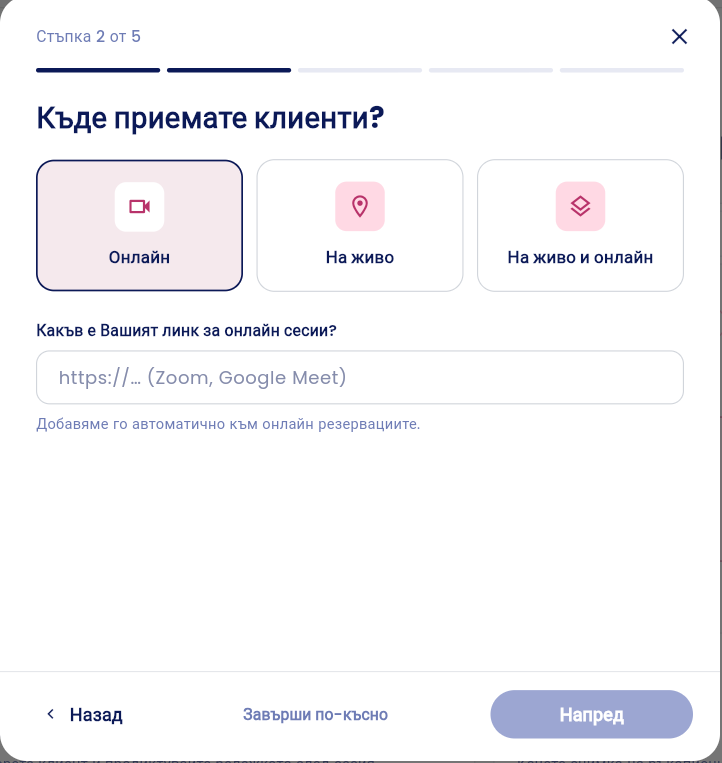
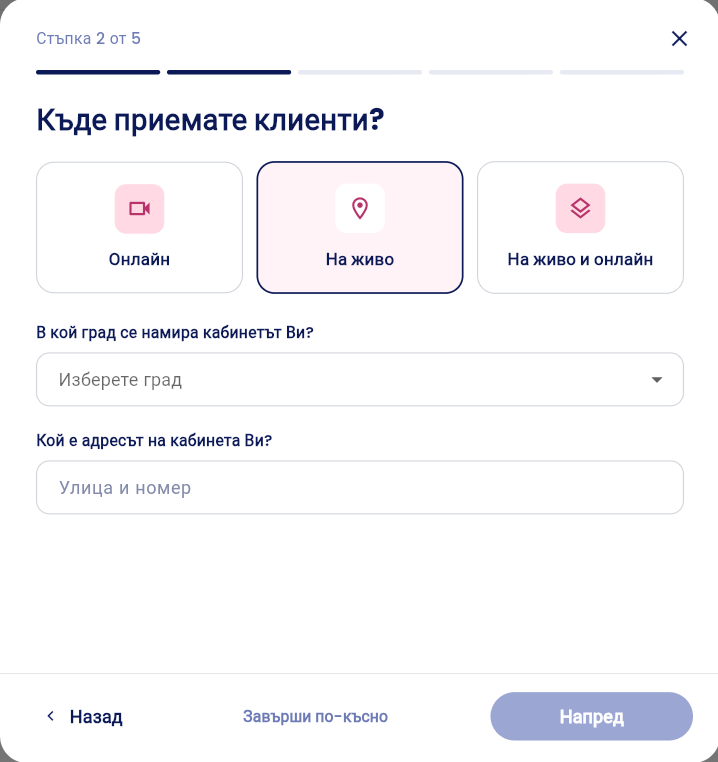
Select one of the three options: Online, In-Person, or In-Person and Online.
Depending on your choice, fill in:
Online: a link for online sessions (Zoom, Google Meet, etc.). We automatically add it to online bookings.
In-person: a city from the list and an address (street and number).
In-Person and Online: Both.
Click Next.
Step 3: When do you see clients?
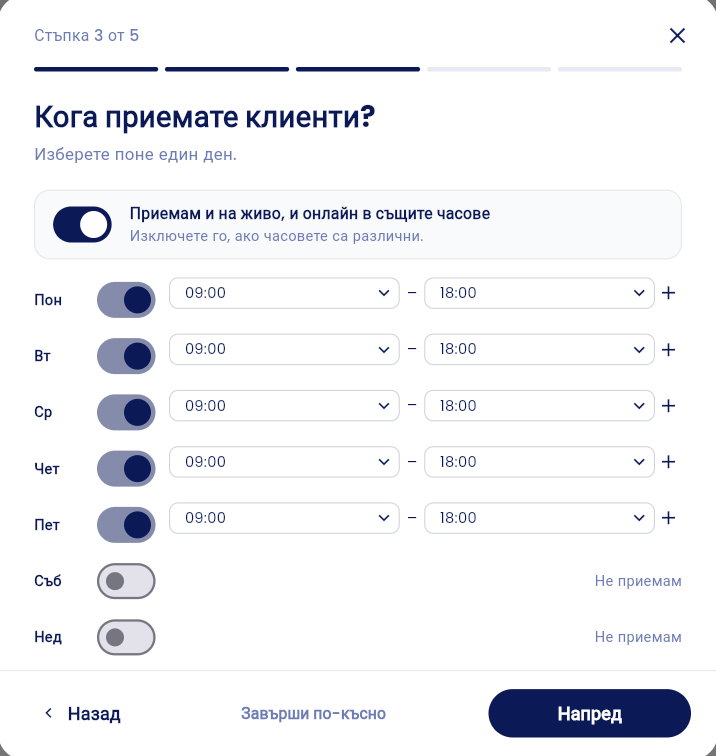
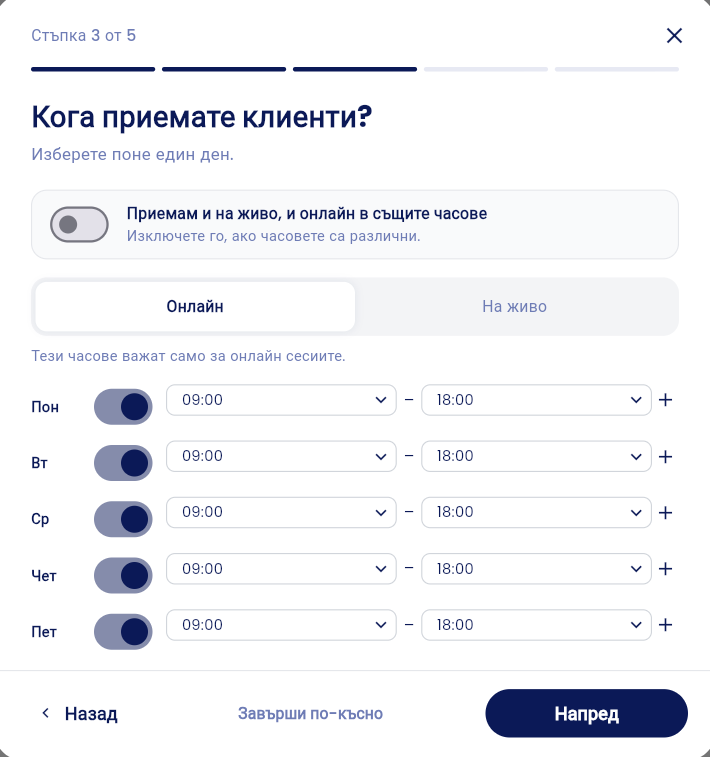
If you see clients both in person and online, you’ll see a toggle labeled “I see clients both in person and online during the same hours.” Leave it turned on if your hours are the same for both. Turn it off to set separate business hours using the “Online” and “In Person” tabs.
Select the days you see clients. You must select at least one.
For each day, set a start and end time. Press + to add another time slot, such as for a lunch break.
Click Next.
💡 You can always change your business hours later:
Regular business hours: go to Reservations → Availability
Working hours for a specific day → from Calendar (Personal).
Step 4: What You Offer
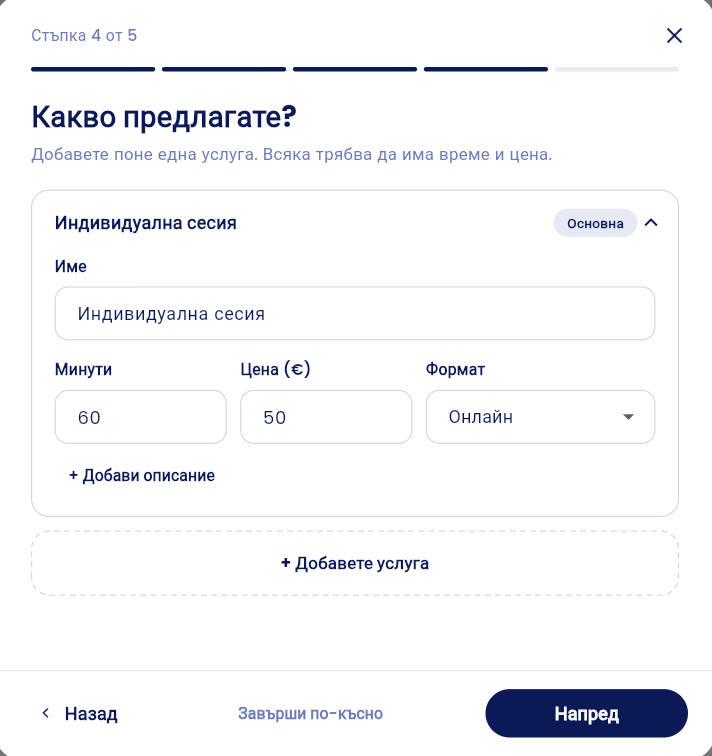
You’ll see the first service, “Individual Session,” with 60 minutes and a price already filled in. Change the name, duration, price (€), and format (online or in-person) if needed.
If you’d like, click + Add Description.
Use + Add Service to add more, such as an initial consultation or a couples’ session.
Click Next.
⚠️ Each service must have a duration and price; otherwise, you cannot proceed.
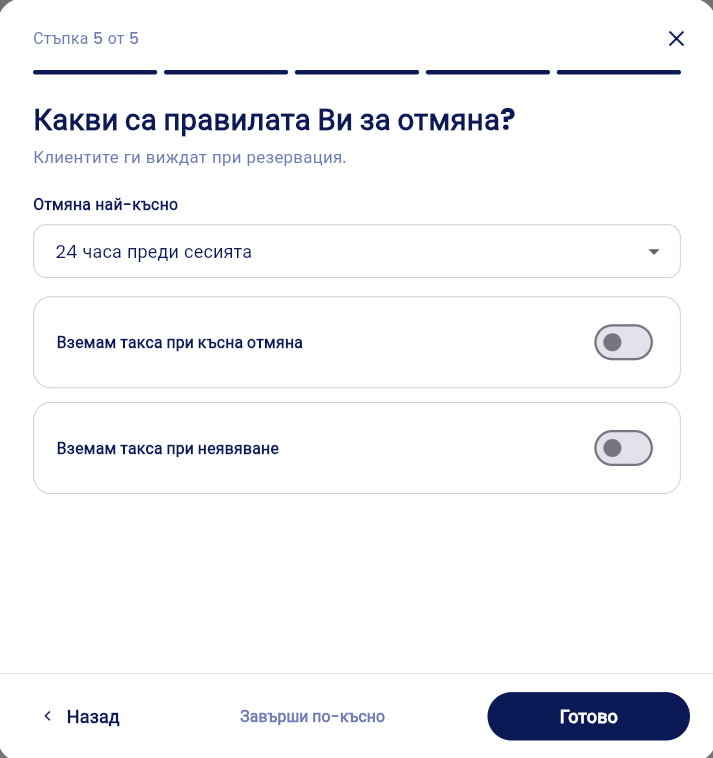
Step 5: Cancellation Policy
Under “Cancellation,” select the latest time by which a client can cancel, for example, 24 hours before the session.
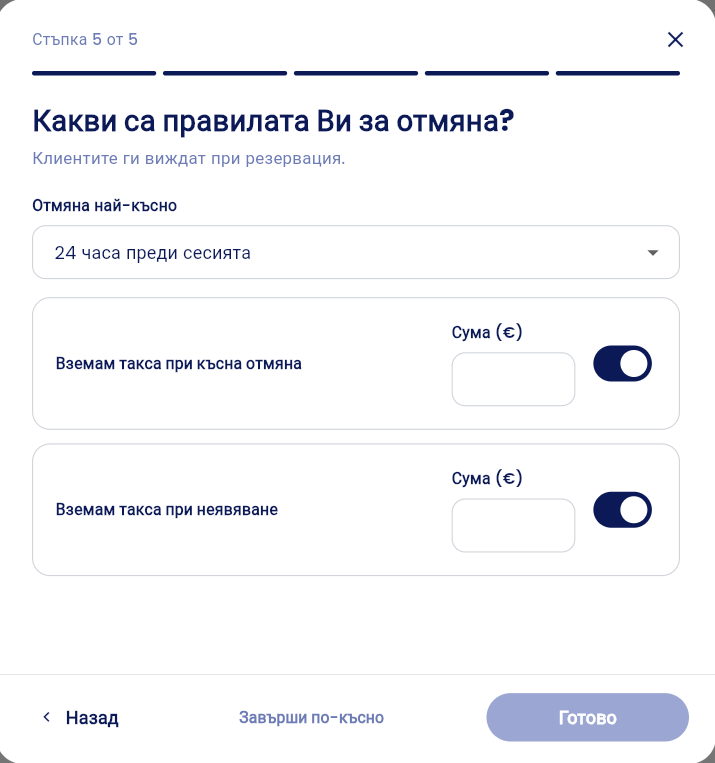
Optionally, check “Charge a fee for late cancellations” and/or “Charge a fee for no-shows” and enter an amount in euros.
Click “Done.”
⚠️ If you enable a fee, enter an amount; otherwise, the “Done” button will remain disabled.
💡 Clients see these rules when making a reservation.
Done: Your booking
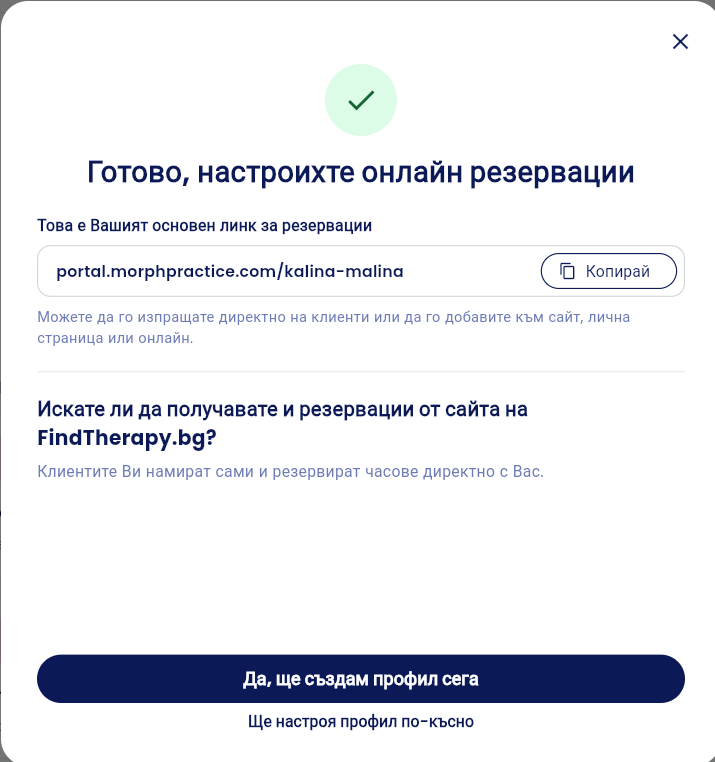
link Your main booking link is displayed.
Click Copy and send it directly to clients or add it to a website, personal page, or online platform.
If you want clients to find you on their own through FindTherapy.bg, click “Yes, I’ll create a profile now.” If not, select “I’ll set up a profile later.”
📎 Related article: How to create your profile in the FindTherapy.bg directory?
VIDEO
Was this helpful?
Still need help? Ask the team