How do you add a document from the library to a client's file?
How to attach an existing resource from the library to a client's file.
Written By Teodora
Last updated 4 days ago
Use Case
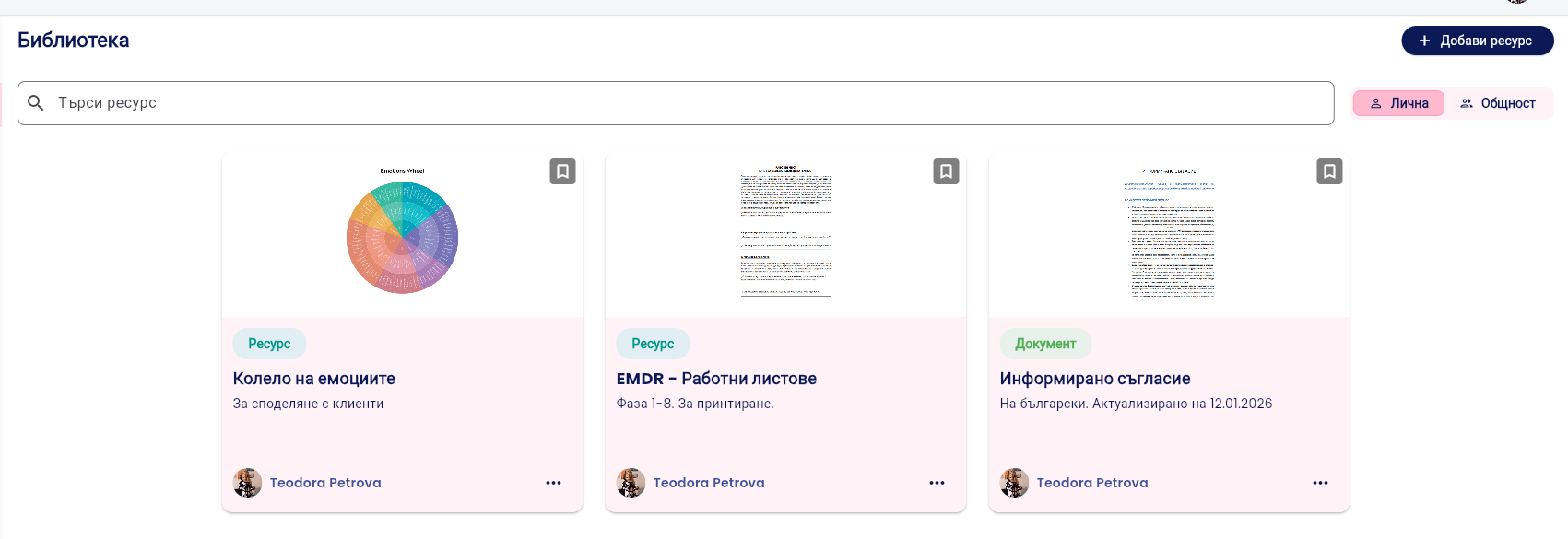
This option is used when you already have material in the library and want to add it to a specific client. For example, you have a resource called “Wheel of Emotions” in the library. You want to:
Attach it to the client’s file
Send it to them later
Why use this option? Instead of uploading the file again to the client’s file, you simply select it from the library.
You don’t have to upload the same file multiple times
You maintain a centralized library
You can track which materials you’ve used with a specific client
You can easily send the resource afterward
⚠️ To use this option, the document must first be added to the library. → See the article: How to Add a File to the Library
1. Go to the “Clients” section
Select the client to whom you want to add the resource.

2. Open their profile
Click on the client’s name.

3. Click “Add Document”
In the “Documents” section, select “Create New Document.” The “New Document” window will open.
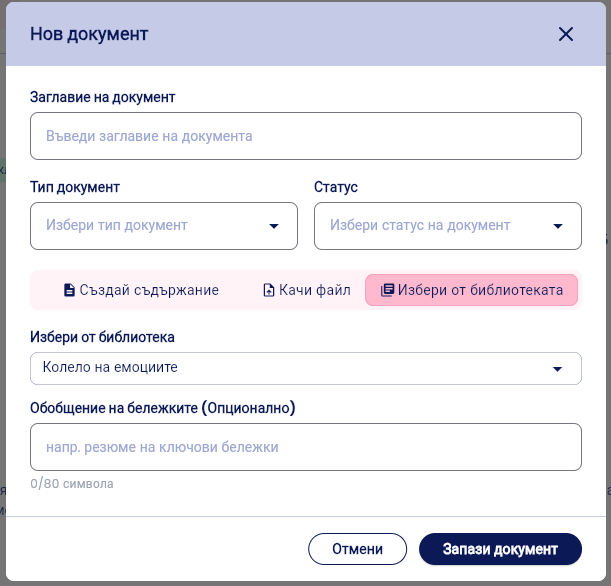
4. Fill in the basic information
Document Title – e.g., “Wheel of Emotions”
Document Type – e.g., Resource
Status – Submitted
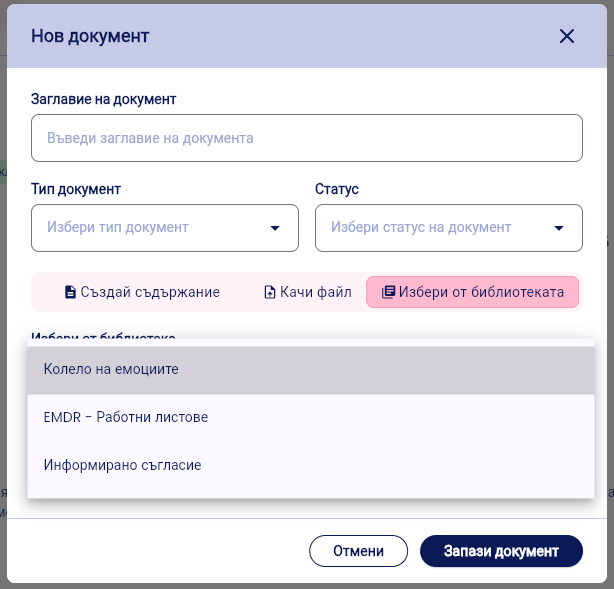
5. Select “Choose from the Library”
Click the “Select from the Library” button. You’ll see a list of your available resources. Select the desired resource—e.g., “Wheel of Emotions.”
6. (Optional) Add a summary
You can add a brief description, e.g., “Sent after the session on March 12.” The summary appears in the document table without having to open the document.

7. Click “Save Document”
The resource is now part of the client’s file and is saved in the “Documents” section.
VIDEO
Was this helpful?
Still need help? Ask the team