How to Upload a Document to Your Personal Library
The documents in your personal library are visible only to you.
Written By Teodora
Last updated 4 days ago
Your personal library is your personal repository for documents and resources—informed consent forms, exercises, forms, and everything else you use frequently in your practice.
💡 Best practice: Use the library for all frequently used exercises, questionnaires, and worksheets. This will help you work faster and keep things organized.
1. Go to the “Library” section
Click the “Library” tab in the main menu. Make sure you’re on the “Personal” tab (top right).
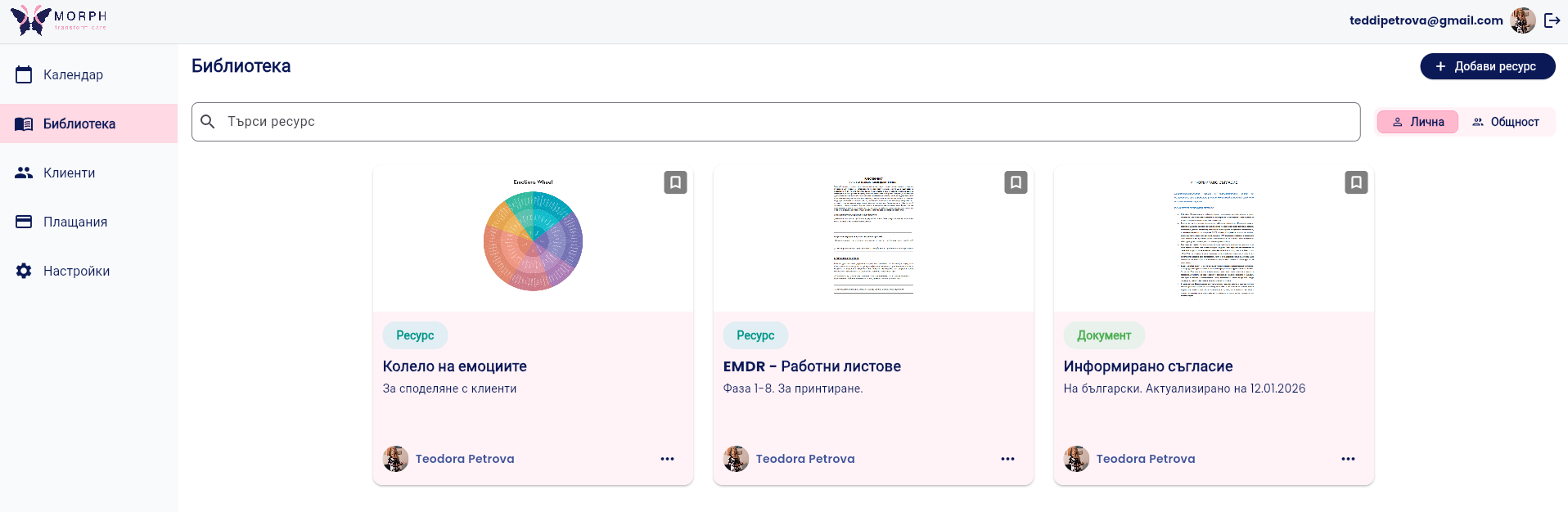
2. Click “+ Add Resource” in the top right corner.
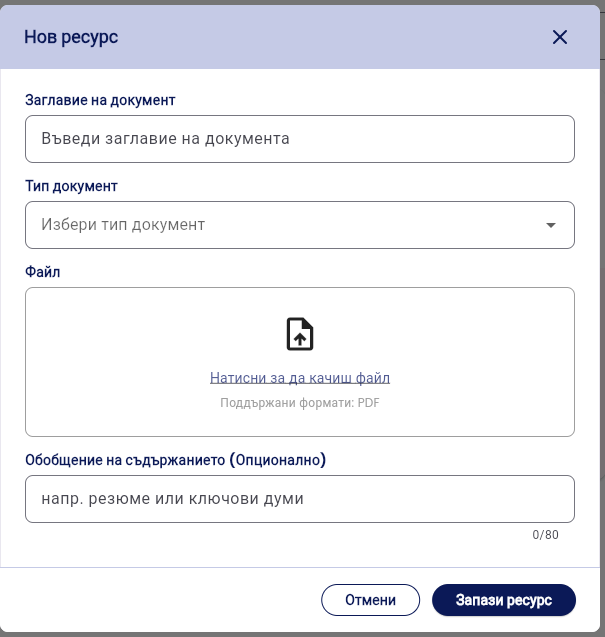
3. Fill in the document information:
Document Title—enter a clear and recognizable title
Document Type—select a category from the list
File—upload your file. Supported format: PDF
Content summary (optional)—add a brief summary or keywords to make it easier to find the document
⚠️ Currently, the system only supports the PDF format.
If the document is:
an image (JPEG, PNG)
a Word file (.doc / .docx)
you must first convert it to PDF and then upload it.
💡 Best practice: Scan all signed documents directly into PDF format to avoid extra steps.
4. Click “Save Resource.” The document appears in your personal library as a card with the selected type and title.
💡 In the “Community” tab, you can find resources shared by the Morph Practice team with all users of the platform. See more information on how to move a resource from the general library to your personal library.
VIDEO
Was this helpful?
Still need help? Ask the team