How do you upload a photographed or scanned document to a client's file?
How to attach a photographed or scanned file to a client's file in Morph.
Written By Teodora
Last updated 4 days ago
Use Case
This option is appropriate when you already have a document ready and want to save it to the client’s profile.
The client has signed a paper informed consent form.
You scan the document as a PDF and want to save it in their file.
Other examples:
a signed suicide agreement
document from a psychiatrist
1. Go to the “Clients” section
Select the appropriate client.

2. Open the client’s file
Click on the client’s name.

3. Click “Add Document”
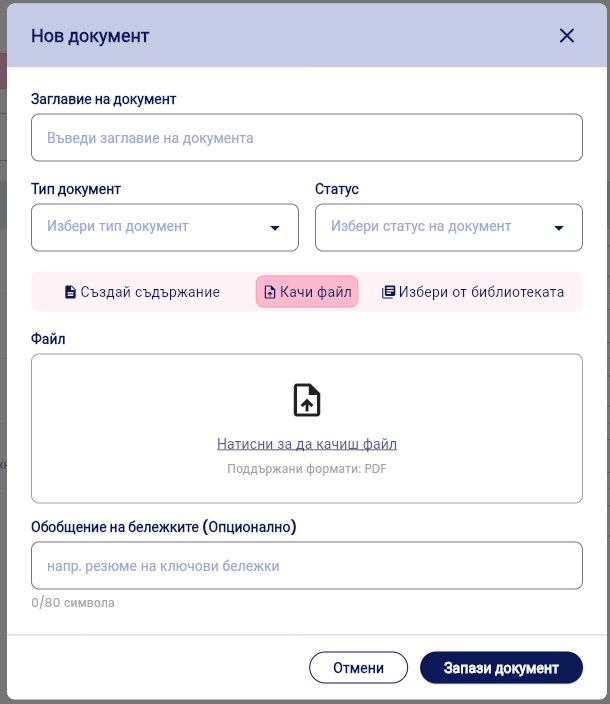
Select “Add Document” in the upper-right corner to create a new document. The “New Document” window will open.
4. Fill in the basic information
Document Title – e.g., “Informed Consent”
Document Type – e.g., Document
Status – e.g., Completed or Filled Out
5. Select “Upload File”
Click the “Upload File” button.
A file upload dialog box will open. Click “Click to upload a file” and select a file from your computer.
⚠️ Currently, the system only supports the PDF format.
If the document is:
an image (JPEG, PNG)
a Word file (.doc / .docx)
you must first convert it to PDF and then upload it.
💡 Best practice: Scan all signed documents directly into PDF format to avoid extra steps.
6. (Optional) Add a summary
In the “Summary of Notes” field, you can add a short description (up to 80 characters), for example: “Signed on March 12, 2026”
This will help you find the document more easily later.
7. Click “Save Document”
The file will be attached to the client’s file and saved in the “Documents” section.
VIDEO
Was this helpful?
Still need help? Ask the team